Breakout rooms in the Networking Hub
Last updated: November 6, 2026
Split your audience into small group conversations, then bring everyone back together. Prepare rooms before the event, or run breakouts on the fly.
Breakout rooms let a host send attendees from the Networking Hub into small video rooms. You can place people in rooms ahead of time, let them choose their own room, or shuffle everyone live. When time is up, bring everyone back to the hub lobby with one click.
Breakout rooms are your hub's circles. Any circle you create on the hub can be used as a breakout room, and its seat count is the room's capacity.
Before the event: prepare your rooms
Open your networking hub in the dashboard and select the Breakouts tab. Everything on this tab is optional. If you skip it, hosts can still open breakouts and place people live.
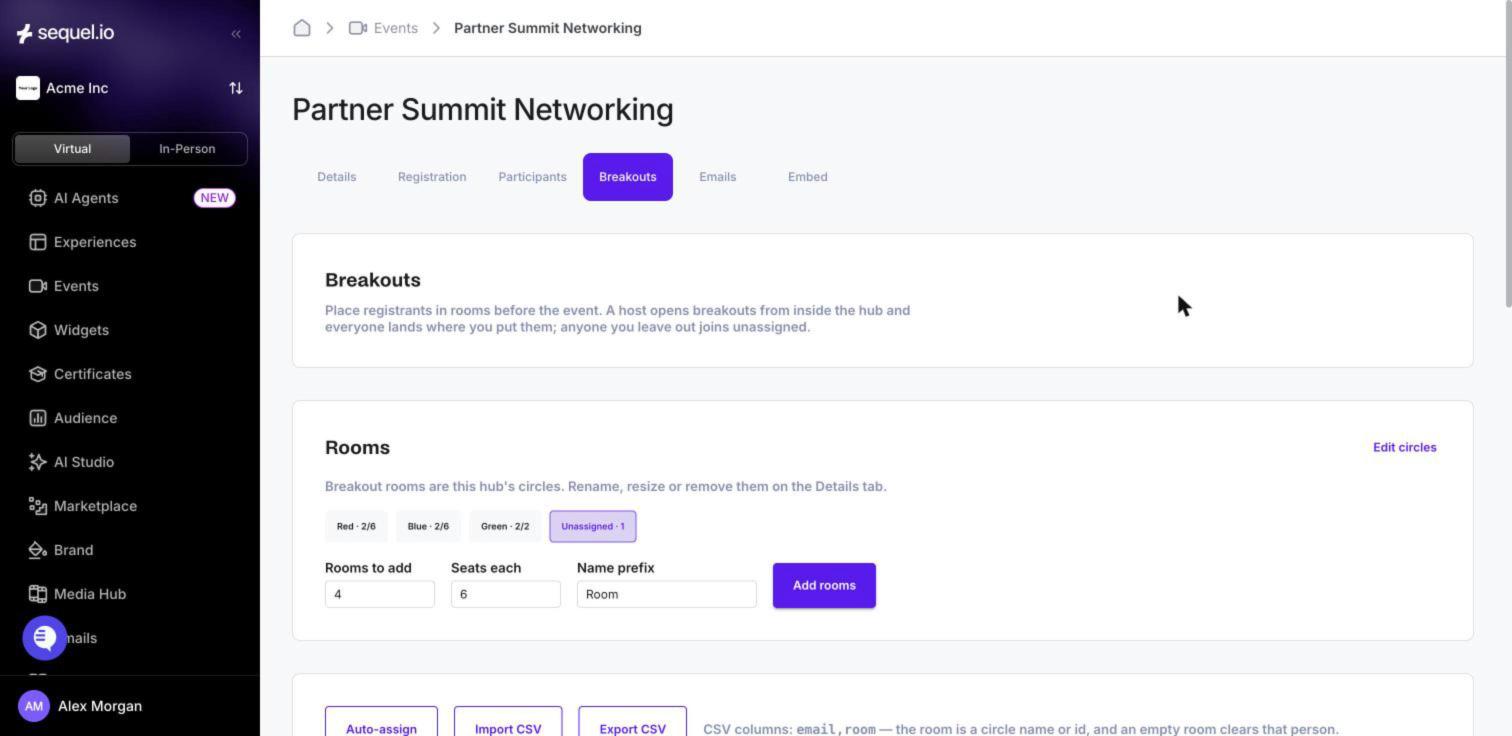
Rooms
The Rooms section lists your hub's circles and how many people are placed in each, for example "Red · 2/6". To add several rooms at once, set Rooms to add, Seats each and a Name prefix, then click Add rooms. To rename, resize or remove rooms, click Edit circles, which opens the circles on the Details tab.
Place people in rooms
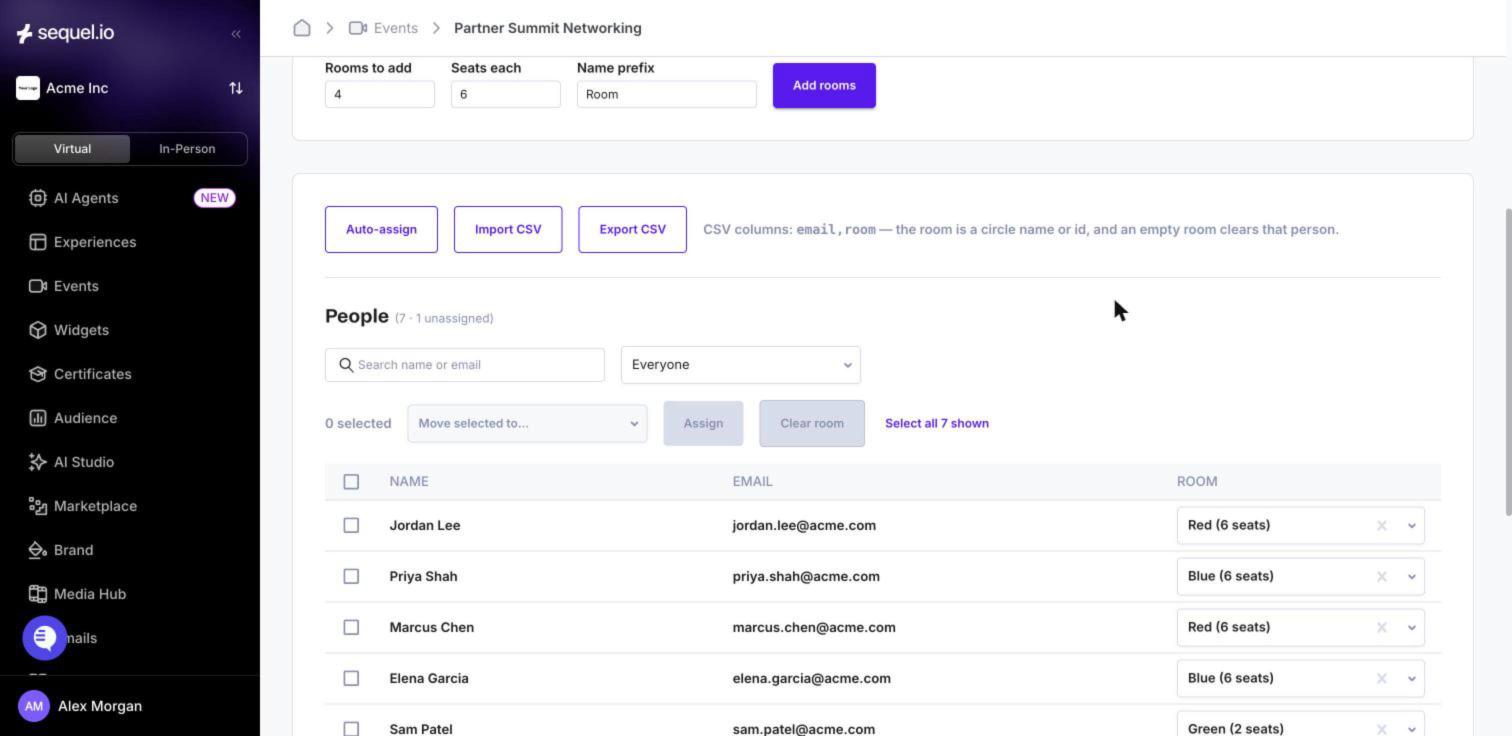
The People list shows everyone registered for the event and their room. You can place people in three ways:
By hand: choose a room from the dropdown on each person's row, or select several people, pick a room in Move selected to… and click Assign. Click Clear room to unassign them.
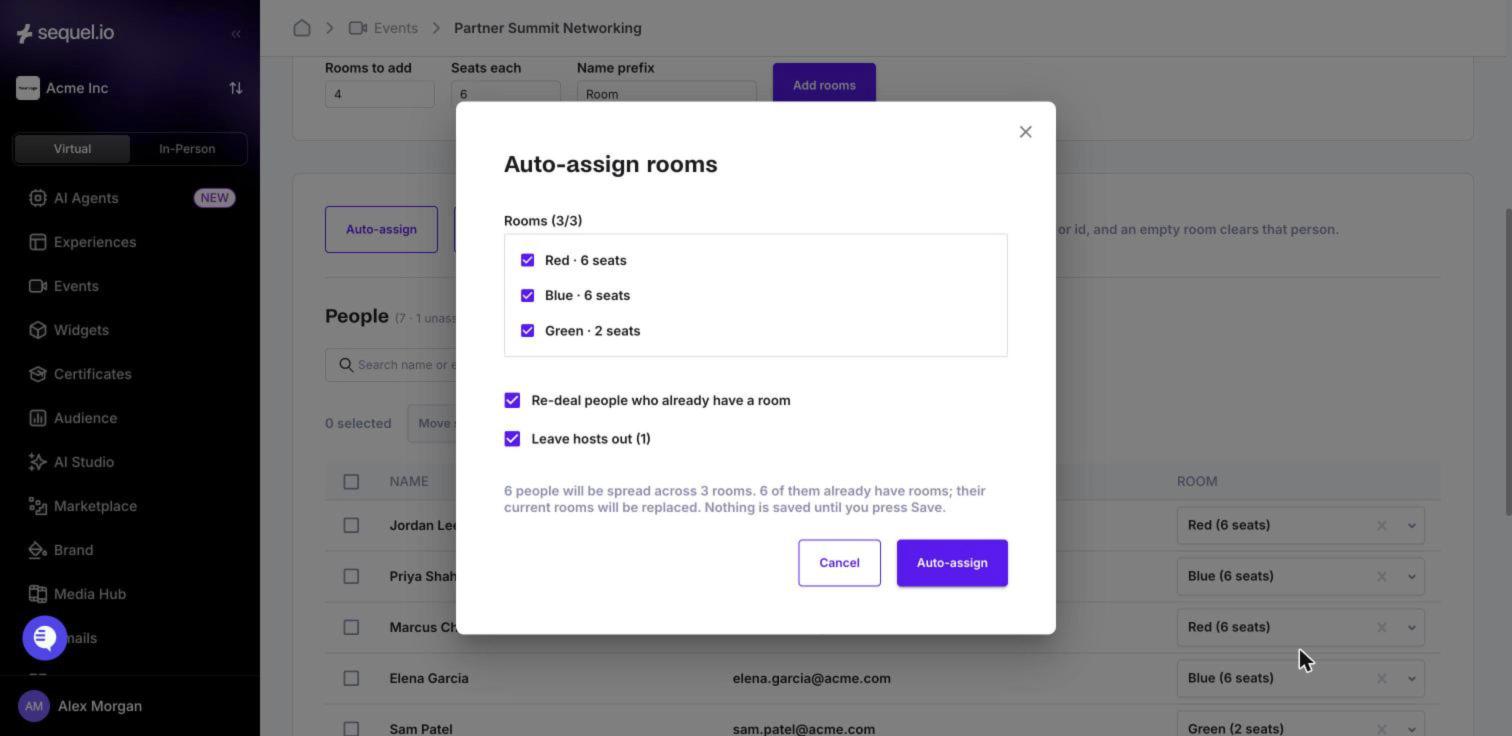
Auto-assign: spreads people across the rooms you tick. Hosts are left out by default. Turn on Re-deal people who already have a room to replace everyone's current room, and the summary tells you how many rooms will be replaced.
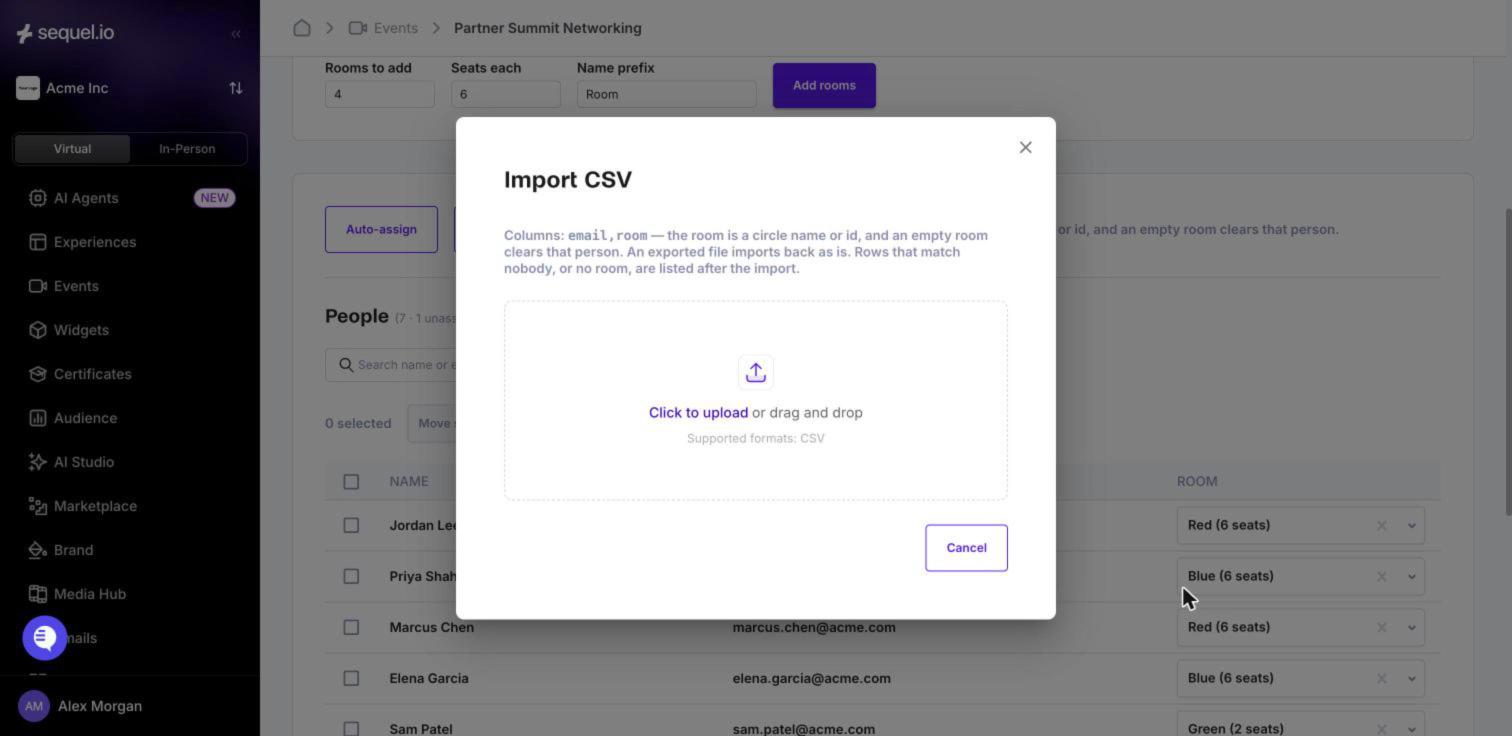
Import CSV: upload a file with two columns,
email,room. The room can be a circle name or id, and an empty room unassigns that person. Export CSV gives you a file in the same format, so you can edit it in a spreadsheet and import it back.
After an import, a notice lists any rows Sequel couldn't use, such as an email that isn't registered or a room name that doesn't exist, so you can fix them.
Save your changes. Room placements aren't saved until you click Save in the bar at the bottom of the page. Click Discard to undo them. If you try to leave the page with unsaved changes, your browser asks you to confirm.
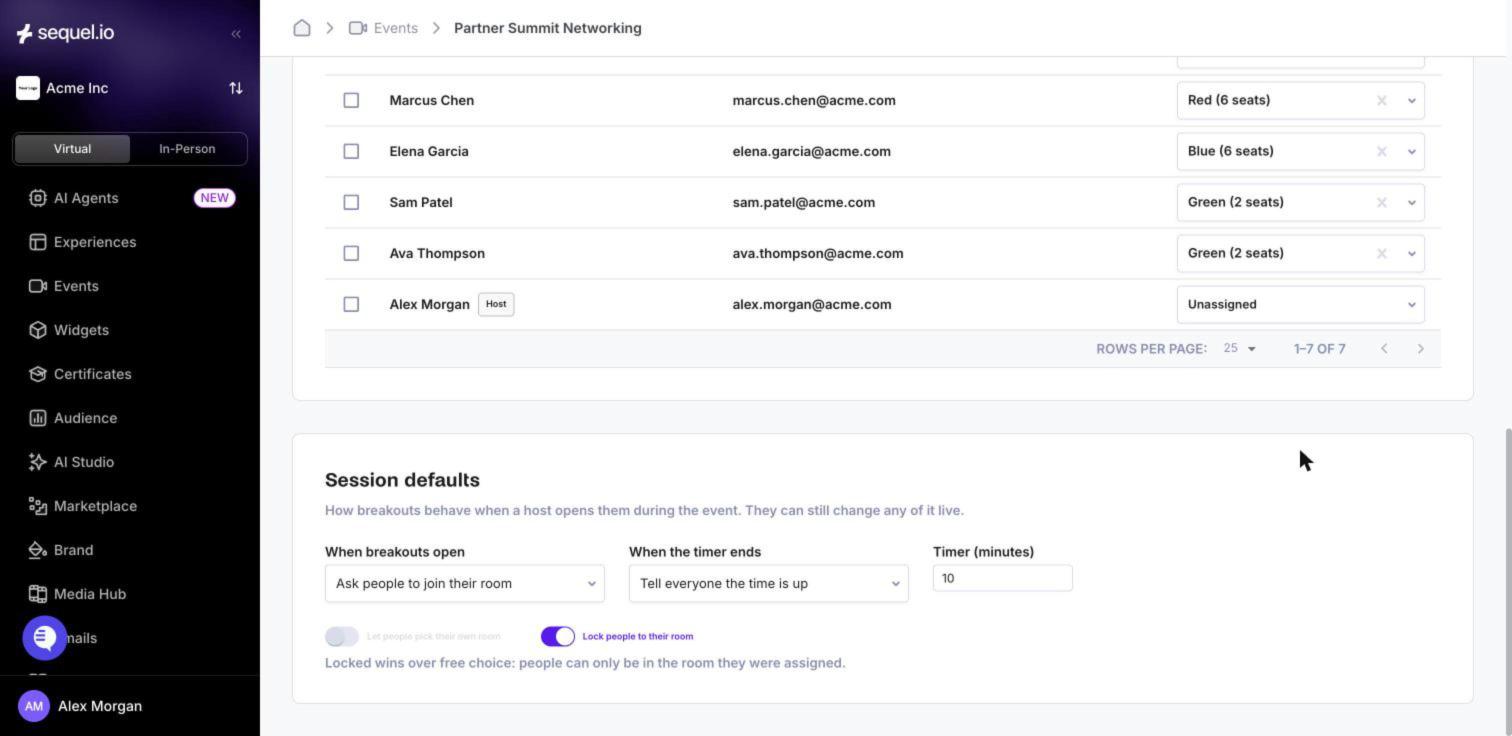
Session defaults
Session defaults decide how breakouts behave each time a host opens them. Hosts can still change any of these live.
Setting | Options |
|---|---|
When breakouts open | Ask people to join their room: each person gets a prompt they can accept or dismiss. Move people automatically: people go straight to their room. |
When the timer ends | Tell everyone the time is up: people see a message and stay where they are. Recall everyone to the hub lobby: everyone is brought back automatically. |
Timer (minutes) | Starts a countdown when breakouts open. Leave it empty for no countdown. |
Let people pick their own room | Attendees can join any open room themselves. |
Lock people to their room | People can only be in the room they were assigned. Locked wins over free choice. |
During the event: run breakouts
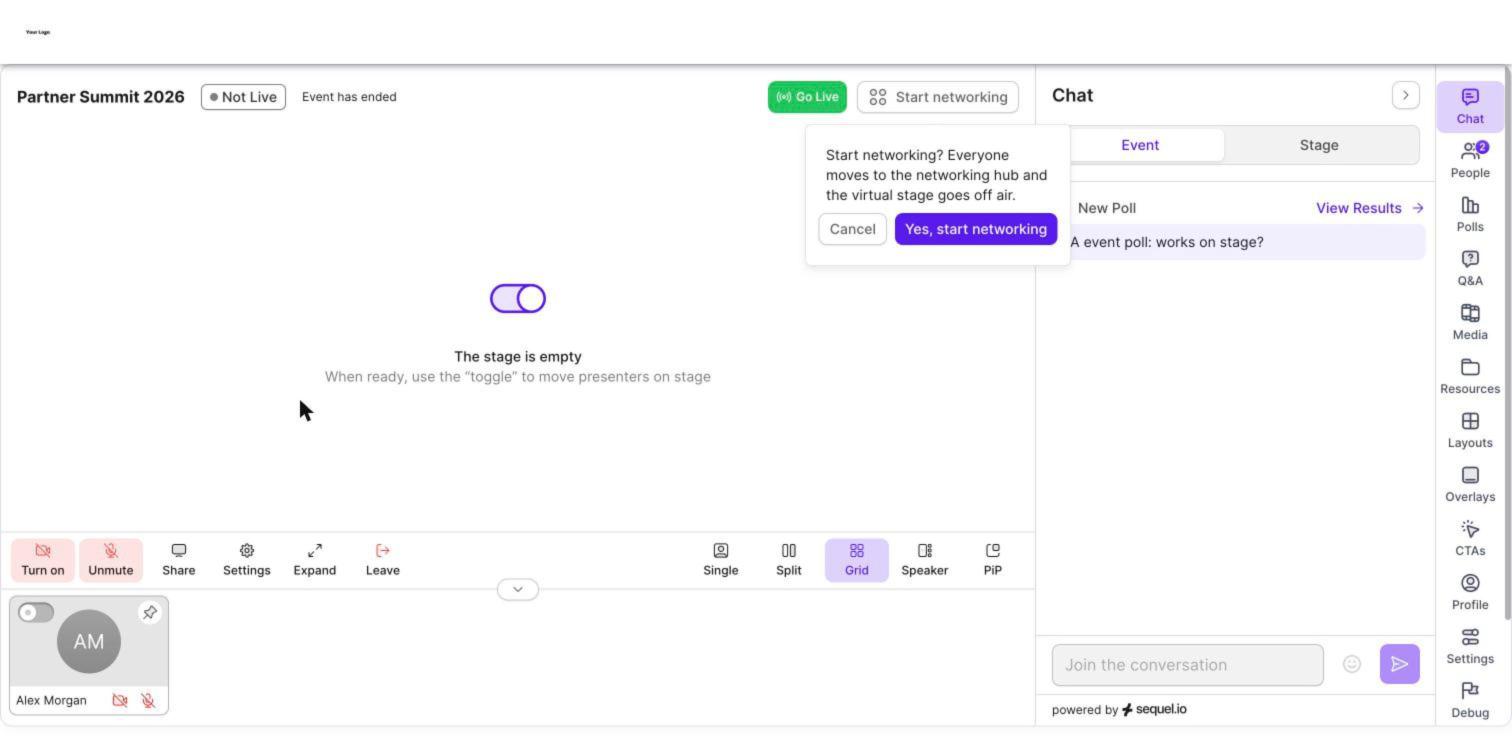
1. Start networking
From the virtual stage studio, click Start networking, then Yes, start networking. Everyone moves to the Networking Hub and the virtual stage goes off air.
2. Open breakouts
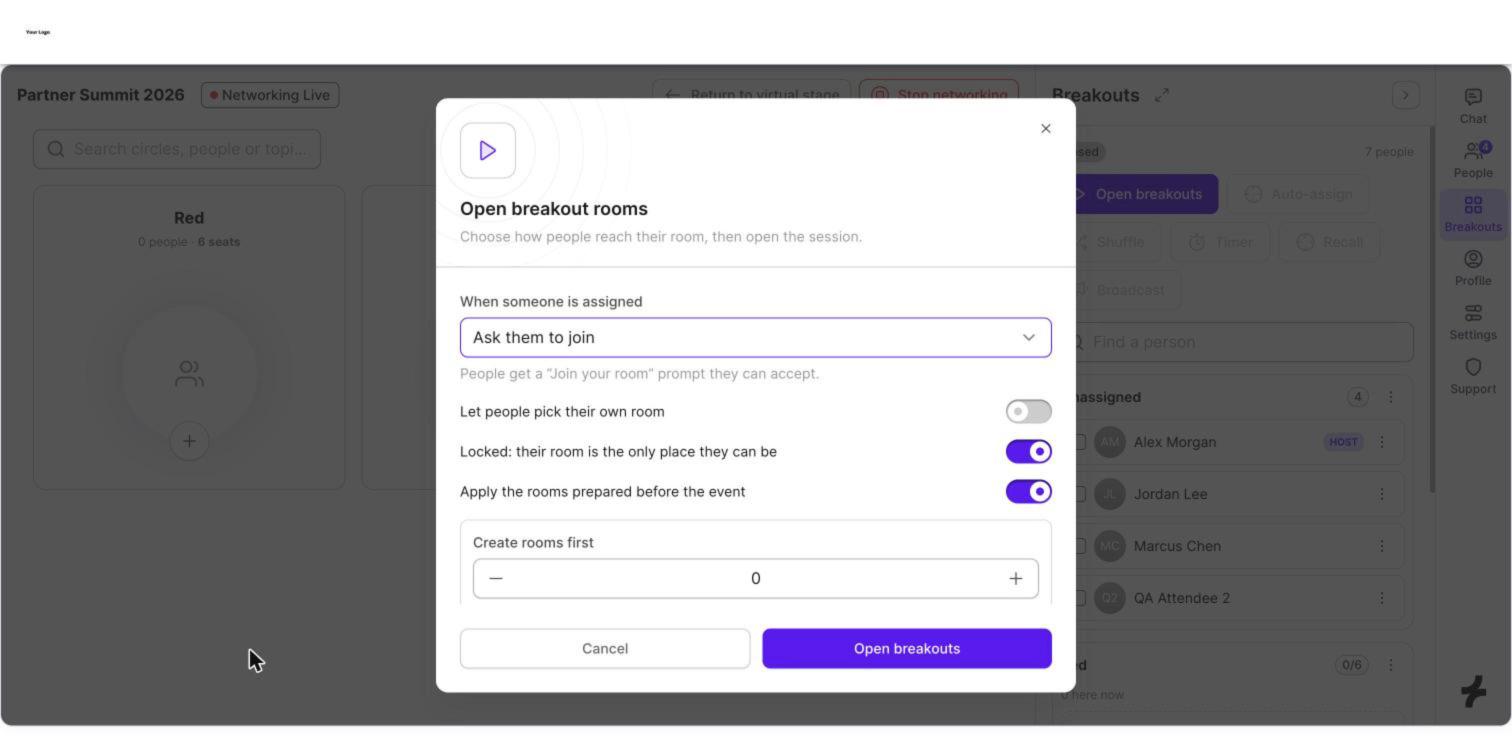
In the hub, open the Breakouts panel from the right-hand rail and click Open breakouts. The dialog starts from your session defaults, and you can change them for this session:
When someone is assigned: ask them to join, or move them automatically.
Let people pick their own room and Locked.
Apply the rooms prepared before the event: turn this off to start with everyone unassigned.
Create rooms first: add extra rooms on the spot.
3. Manage rooms from the breakouts panel
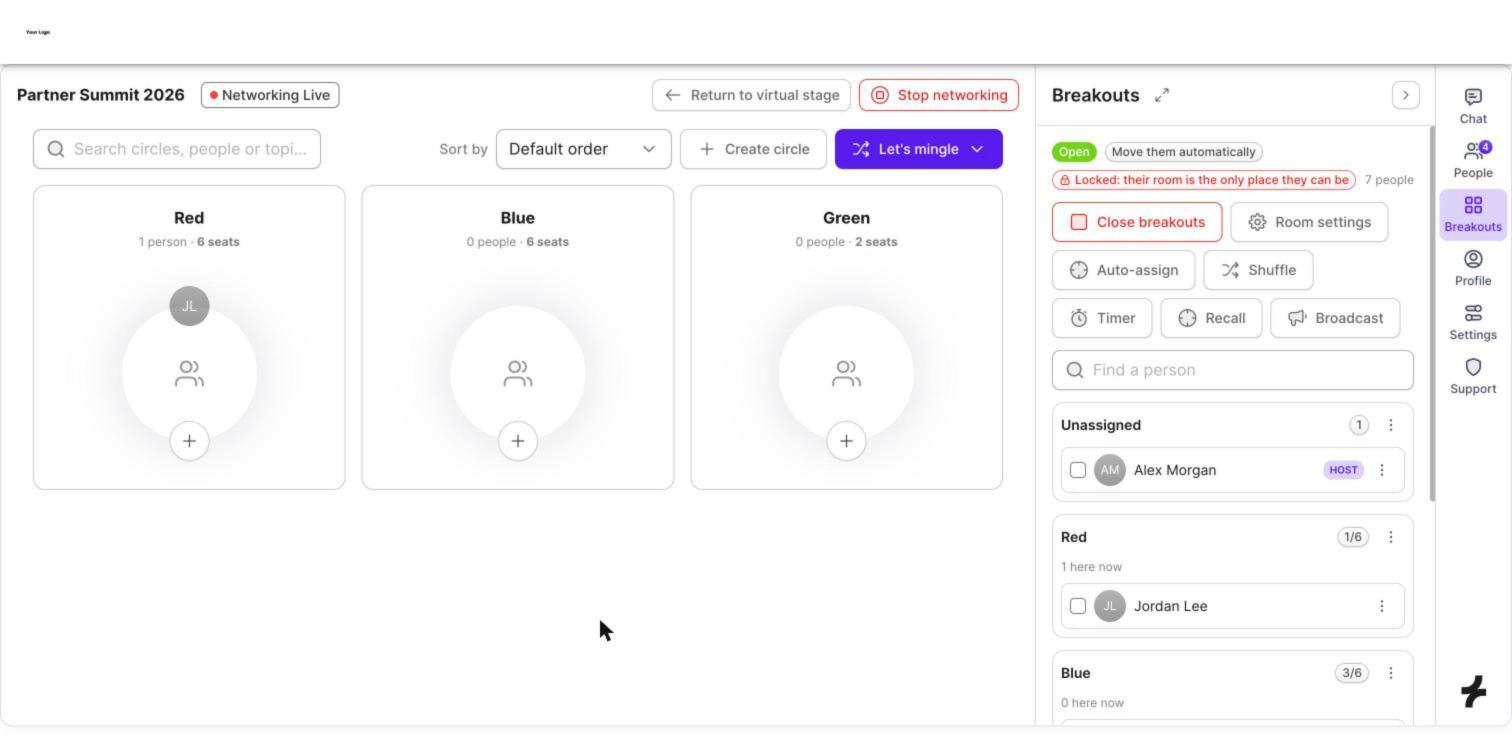
Once breakouts are open, the panel shows each room, who's in it and how many are here now. People placed in a room who haven't joined the hub show Not here yet, and people who stepped away show Away.
Control | What it does |
|---|---|
⋮ on a person → Move to… | Moves one person to another room. Use Unassign to send them back to Unassigned. |
Auto-assign | Places everyone who's unassigned. |
Shuffle | Re-deals everyone who's here across the rooms. Only people currently in the hub are moved. Hosts are left out by default. |
Room settings | Changes how people are moved, Locked and self-select while breakouts are running. |
Timer | Starts, extends (Add time) or clears a countdown. |
Recall | Brings everyone back to the hub lobby now. |
Broadcast | Sends a message to every room. |
Close breakouts | Ends the session. Everyone in a room goes back to the lobby. The rooms stay, so you can open breakouts again later. |
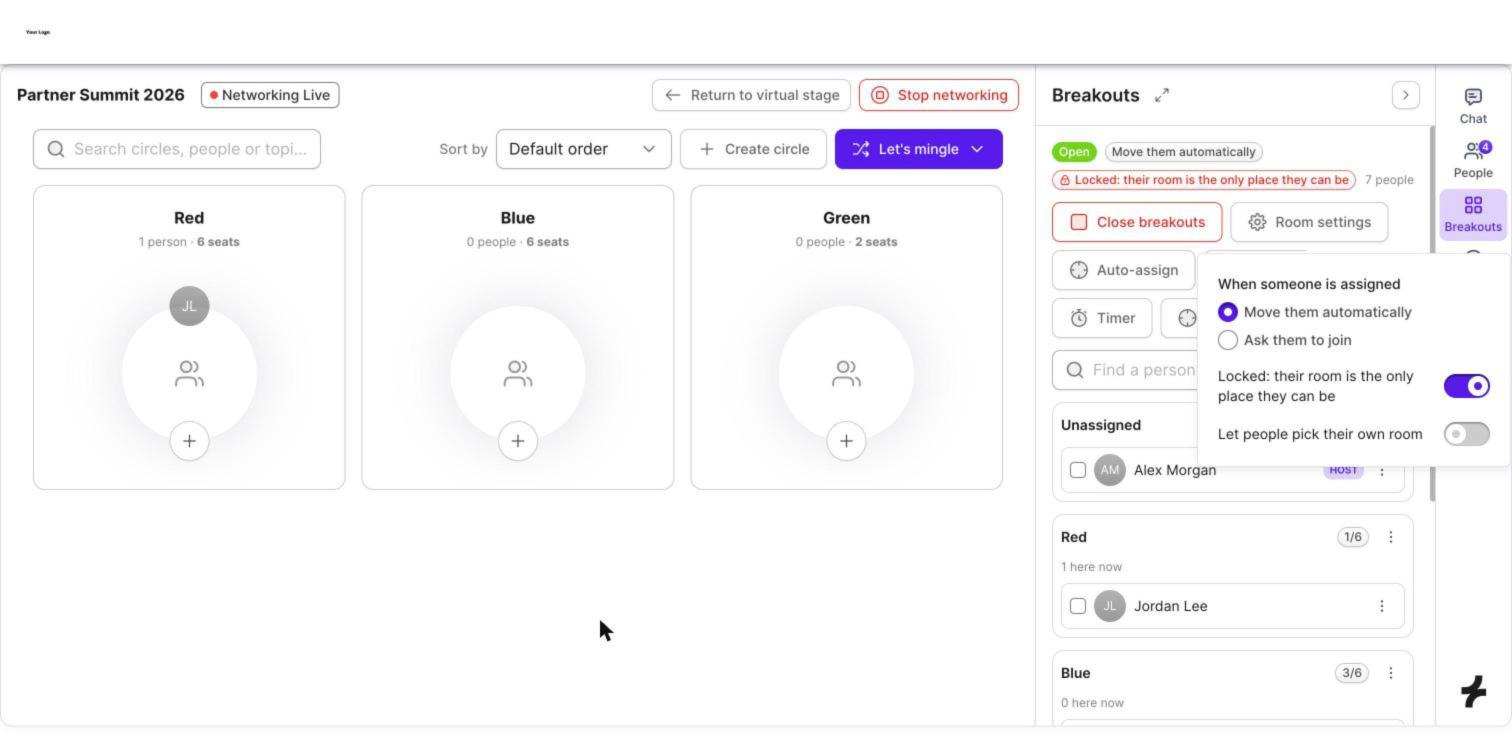
Change settings while breakouts are running
Click Room settings to change how people are moved, whether they're locked to their room, and whether they can pick their own room. Changes reach attendees straight away, with no reload. If you switch to Move them automatically, anyone still waiting on a "Join your room" prompt is moved right away.
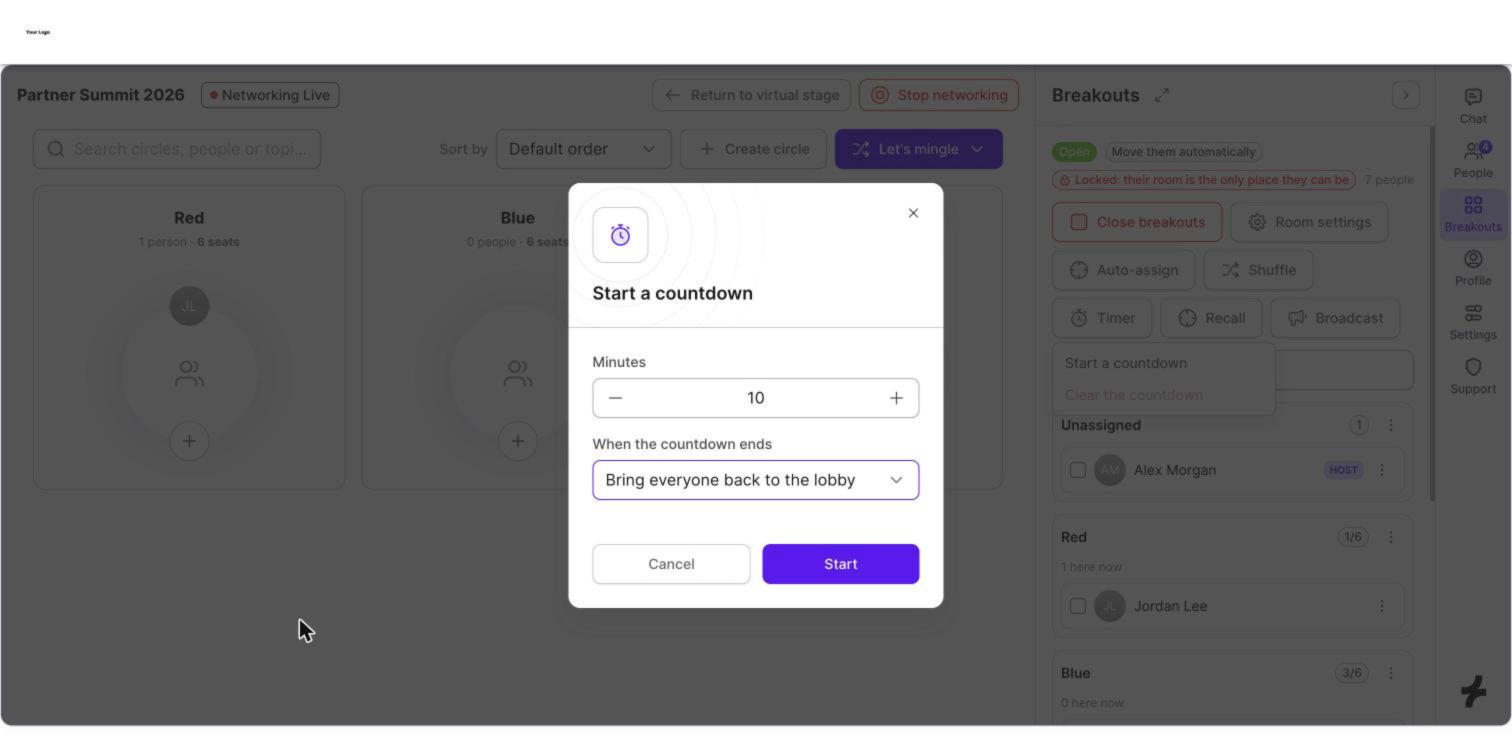
Use a countdown
Click Timer → Start a countdown, enter the minutes and choose what happens when it ends: Tell everyone the time is up, or Bring everyone back to the lobby. To change a running countdown, use Add time or Clear the countdown.
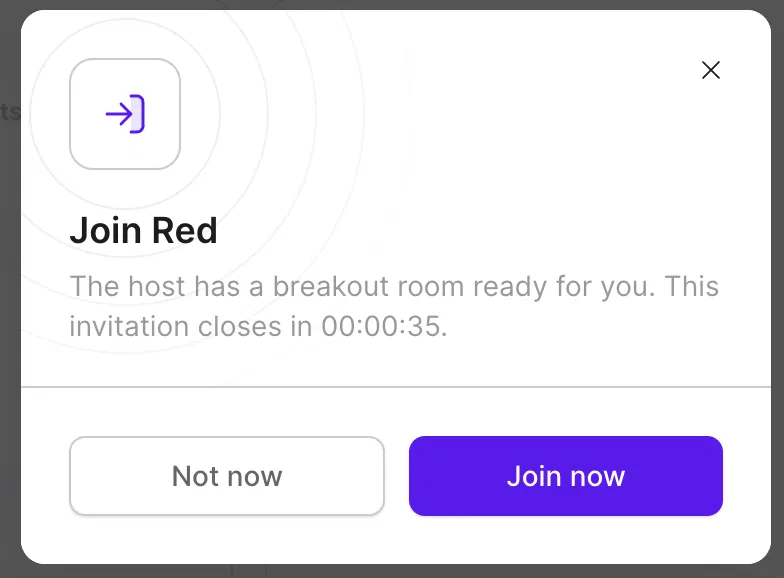
What attendees see
Ask mode: attendees get a Join [room name] prompt that closes after a short countdown. They can click Join now, or Not now to stay in the lobby. The panel still shows them assigned to that room, but not "here now".
Moved automatically: attendees go straight into their room's call.
Camera and microphone: attendees choose their camera and mic once. Their choice carries into every room, including when a host moves them, and is remembered if they reload the page. Someone who muted stays muted.
Picking their own room: when self-select is on and they aren't locked, attendees can join any open room from the hub lobby.
Chat, polls and Q&A in a room
Each room has its own chat, polls and Q&A. Polls and questions in one room aren't visible in other rooms or on the main stage. On phones, chat, polls and Q&A are under More in the call controls.
Bring everyone back
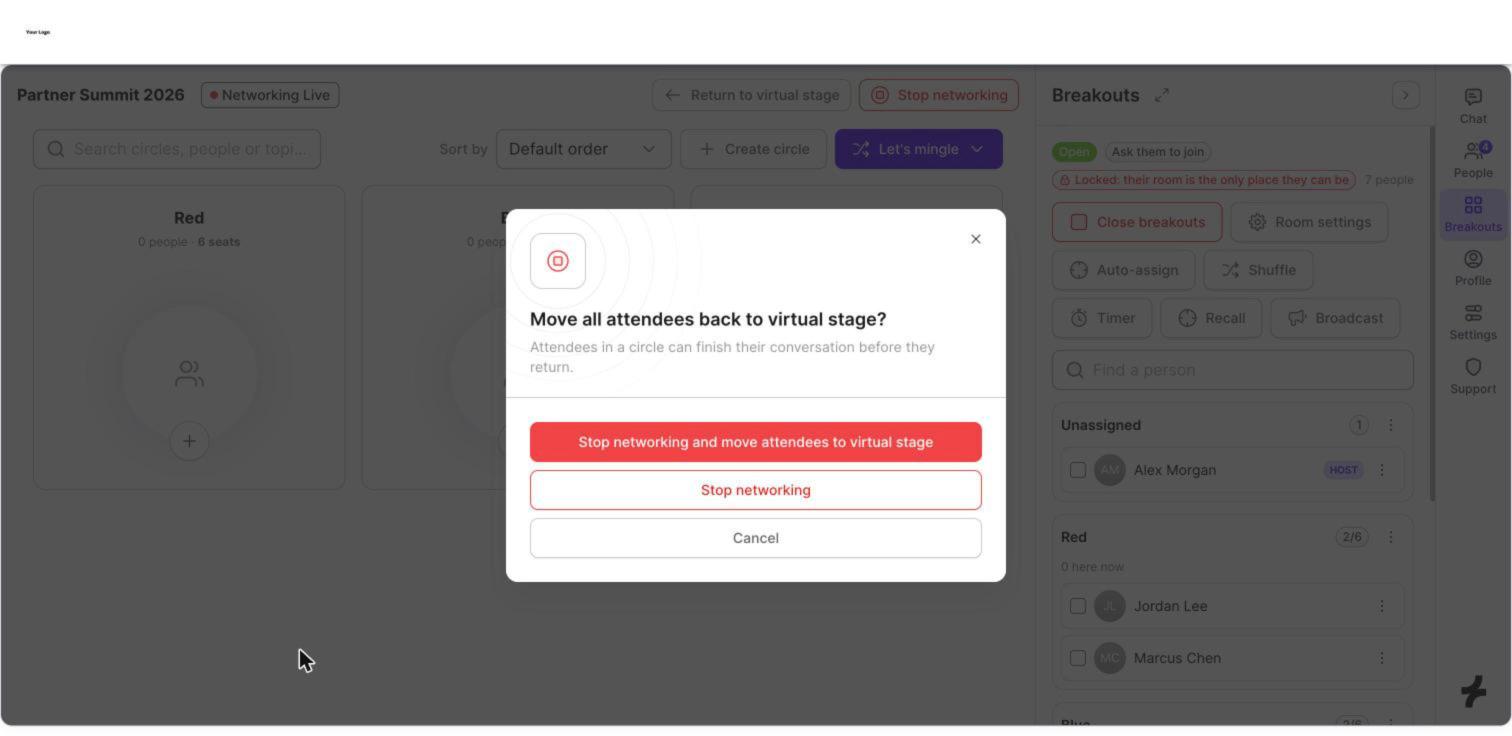
Recall or Close breakouts returns everyone to the hub lobby. To end networking entirely, click Stop networking. You'll be asked how to bring attendees back:
Stop networking and move attendees to virtual stage: everyone returns to the stage right away.
Stop networking: people in a circle can finish their conversation before they return.
Either way, breakouts close and the stage comes back off air, so attendees don't see an empty broadcast. Click Go Live when you're ready to continue. Stage content such as polls you show works as soon as people are back.
Good to know
Hosts can move freely. Hosts aren't placed by Auto-assign or Shuffle unless you turn off Leave hosts out, and they can join any room to check in.
Seats are a limit. A room's seat count is its capacity. Set it on the circle in the hub's Details tab.
Prepared rooms are optional. If you don't prepare rooms, everyone starts unassigned and you can place them live.
FAQ
Someone didn't get the "Join your room" prompt. Ask them to reload the page, or switch Room settings to Move them automatically.
Why is the stage not live after networking? Stopping networking takes everyone back to the stage off air, so attendees don't see an empty broadcast. Click Go Live when you're ready.
Can I reuse the same rooms in a later session? Yes. Closing breakouts keeps the rooms, and the next session starts from your session defaults.