Create recurring sessions in an event series
Last updated: November 6, 2026
Set up sessions that repeat on a schedule, such as every Thursday, every other week on Thursday and Saturday, or the last Thursday of every month. Sequel creates the sessions for you and keeps adding new ones as the series runs.
Overview
Recurring sessions let you add many sessions to an event series in one step. You pick a start date and a rule, check the list of upcoming dates, and Sequel creates the sessions. Rules work much like Google Calendar's: repeat daily, weekly, monthly or yearly, choose several weekdays, or pick a weekday of the month such as "the third Thursday".
Tip: Set up your Event series settings before you add sessions. New sessions inherit those settings automatically.
Create recurring sessions
Go to Events → Event series and open your series.
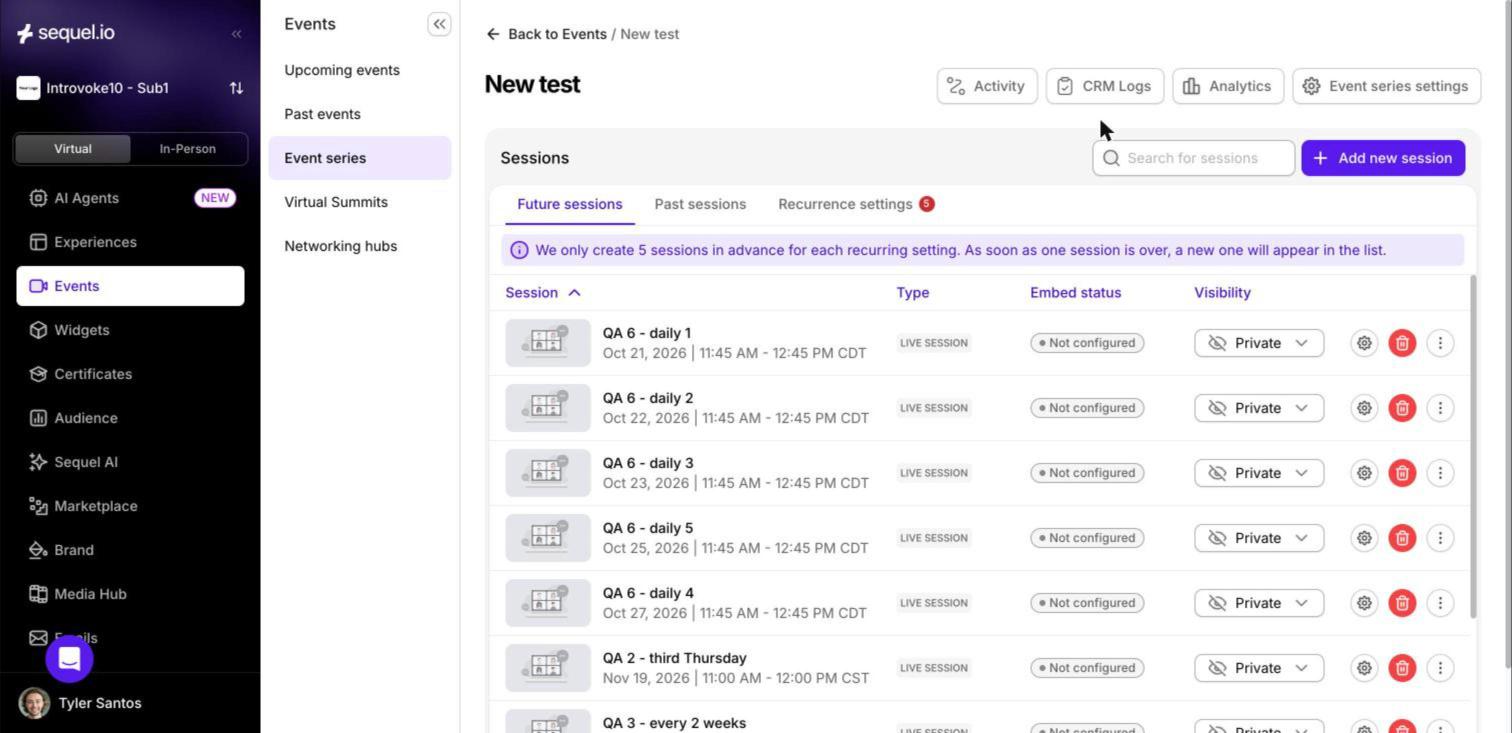
On the Future sessions tab, click Add new session, choose Recurring session, then click Continue.
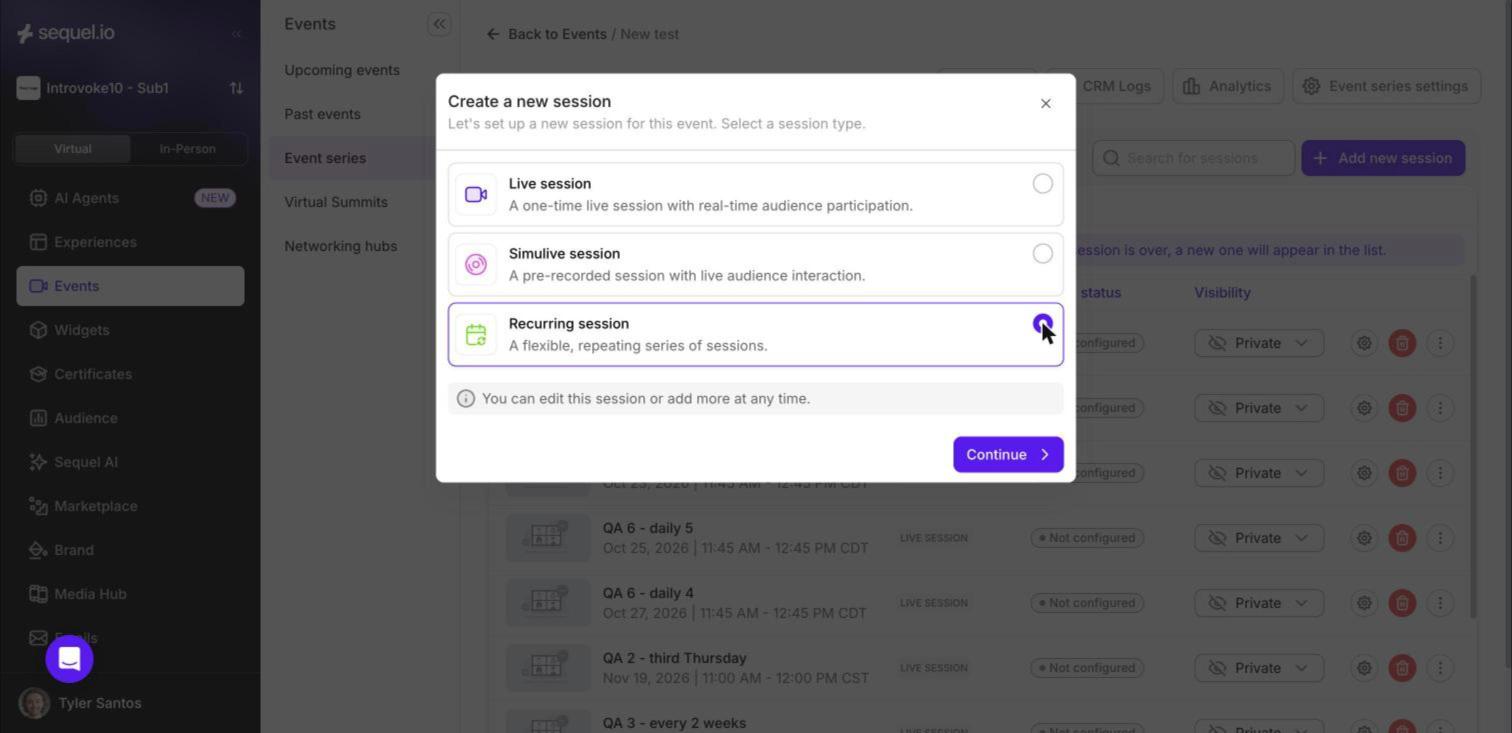
Enter a Session name. The first session uses this name, and each later session gets a number added: "Product Demo", "Product Demo 1", "Product Demo 2" and so on.
Set the Start date and Start time of the first session, the Timezone, the Duration, and the Default visibility.
Choose how often the session repeats under Repeats.
Choose when the schedule ends under Ends.
Check the summary, and click Show sessions to see the upcoming dates.
Click Create session.
Choose how often it repeats
The Repeats menu suggests rules based on your start date. For a first session on Thursday, November 19, it offers:
Option | What it does |
|---|---|
Daily | Every day, including weekends |
Weekly on Thursday | Every week on the start date's weekday. This is the default. |
Monthly on the third Thursday | The same weekday position each month, e.g. Nov 19, Dec 17, Jan 21 |
Annually on November 19 | Once a year on the same date |
Every weekday (Monday to Friday) | Monday to Friday. Public holidays are not skipped. |
Custom… | Build your own rule (see below) |
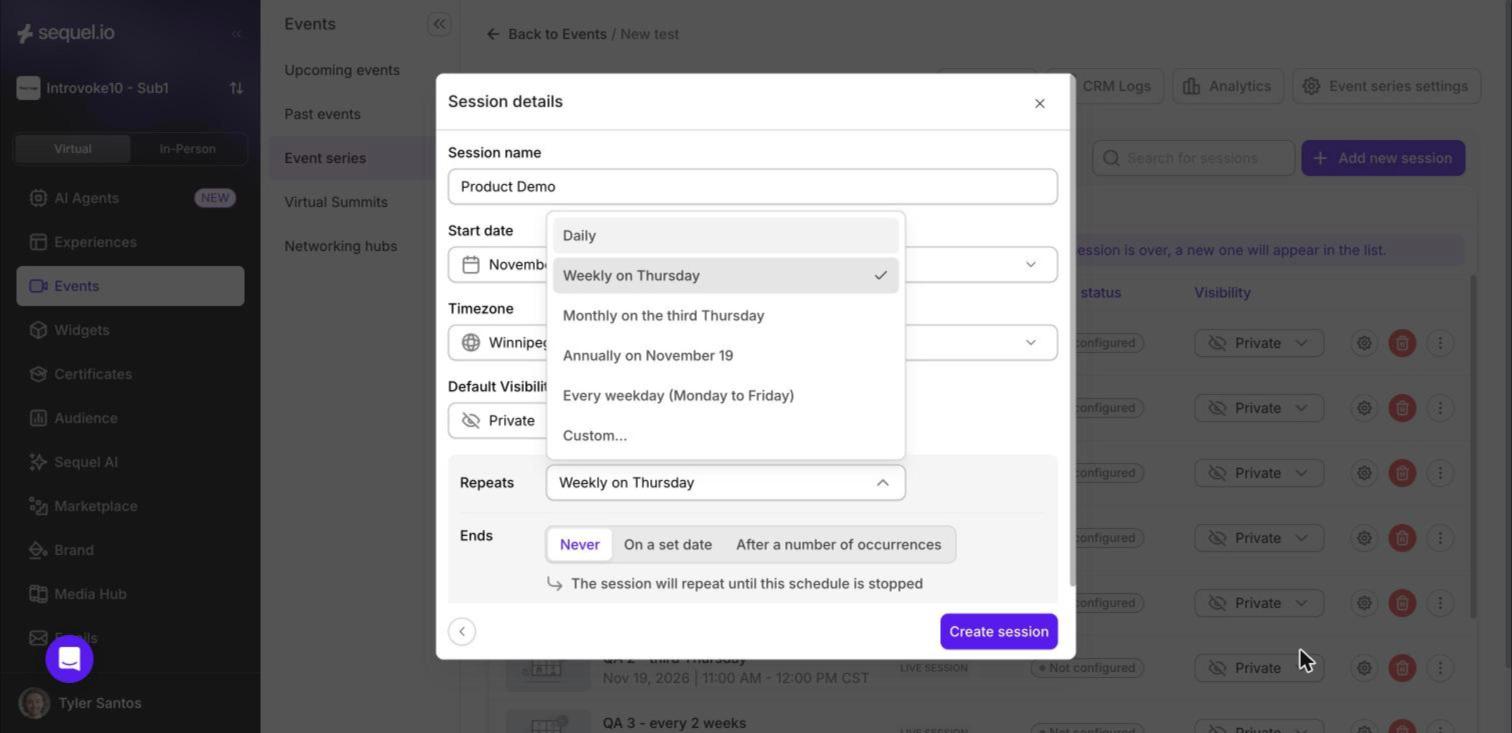
If you change the start date, the options update to match it.
Last weekday of the month: when your start date falls in the last 7 days of a month, you'll also see an option like "Monthly on the last Thursday", which is handy for end-of-month events. If the date is also the fourth Thursday, both "fourth" and "last" are offered. There's never a "fifth" option, because not every month has one.
Custom rules
Choose Custom… to set your own rule. It starts from whatever preset you had selected, so you can adjust it rather than start over.
Repeat every: a number from 1 to 99, and a unit: Day, Week, Month or Year.
Repeat on (weeks): click the weekday buttons to pick one or more days. The start date's weekday is always selected and shows a lock, because your first session falls on that day.
On (months): repeat on a day of the month (e.g. "Monthly on day 19") or a weekday position (e.g. "Monthly on the third Thursday").
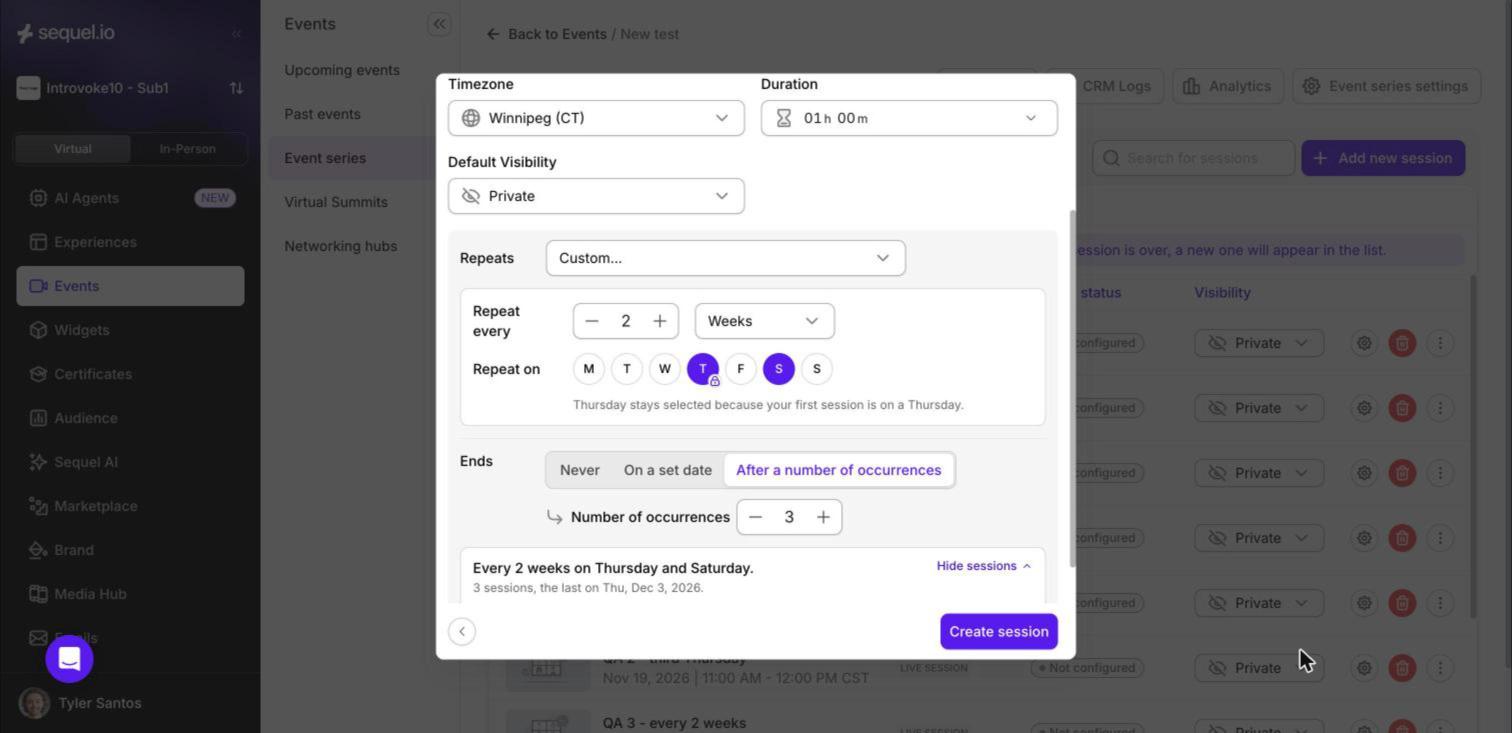
How "every 2 weeks" is counted: weeks run Monday to Sunday, counted from the week of your first session. Every 2 weeks on Thursday and Saturday starting Thu, Nov 19 gives Nov 19, Nov 21, Dec 3, Dec 5, and so on.
Shorter months: if you repeat on a day some months don't have (such as the 31st), the session falls on the last day of those months and goes back to the 31st when it can: Jan 31, Feb 28, Mar 31.
Check before you create
The summary card at the bottom of the dialog describes your rule in plain words, for example "Monthly on the third Thursday. 3 sessions, the last on Thu, Jan 21, 2027." Click Show sessions to see each upcoming date, time and session name. The first session is tagged 1st session, and times are shown in the timezone you chose.
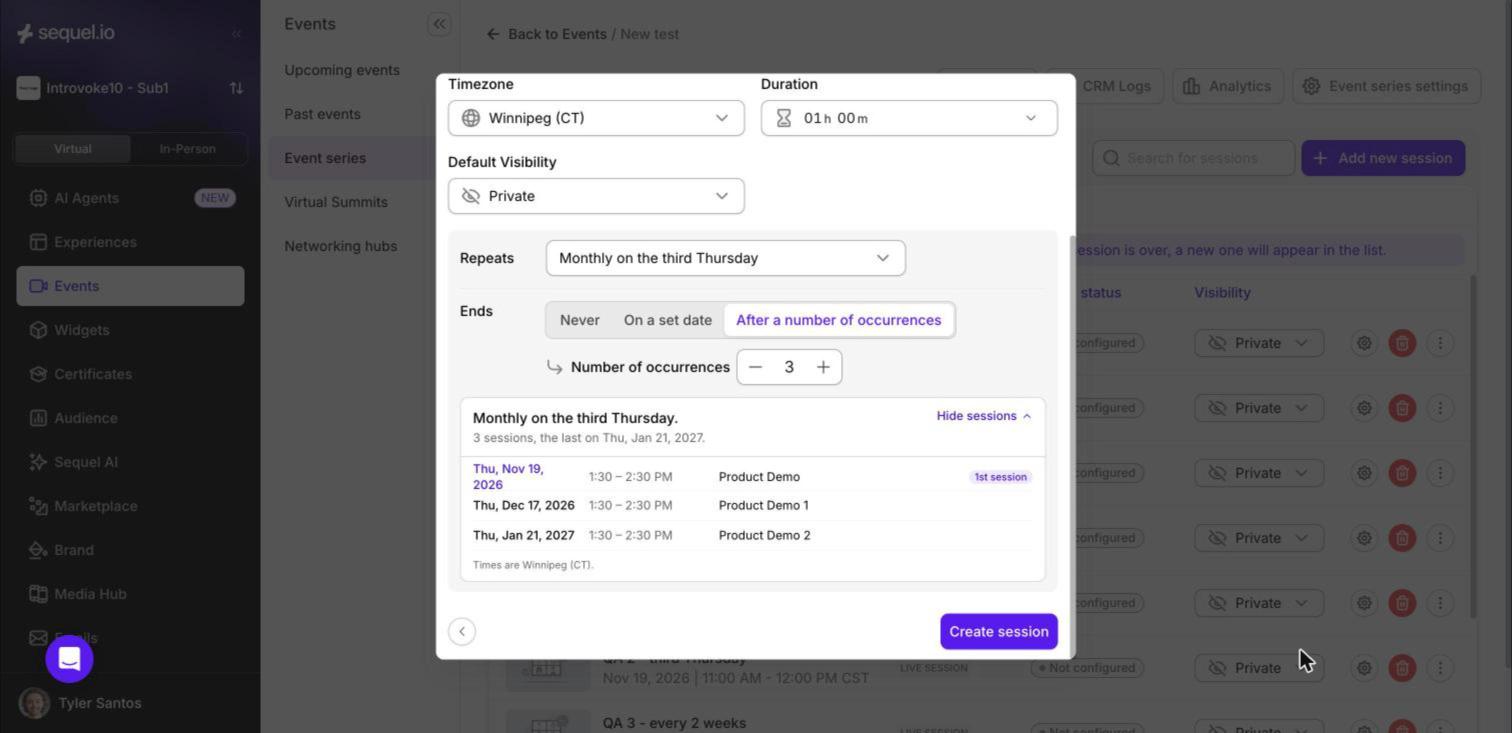
Tip: On smaller screens, scroll down inside the dialog to see the summary card and Show sessions.
Choose when it ends
Option | What happens |
|---|---|
Never | The schedule keeps going until you stop it. Sequel creates the first 5 sessions right away. Once the schedule is running, it automatically adds new sessions to keep 5 upcoming. |
On a set date | Sessions are created up to and including the end date. The end date starts out as the date of the 10th session, and you can change it. |
After a number of occurrences | Creates a set number of sessions, from 1 to 99. Set the number with the + and − buttons or by typing. |
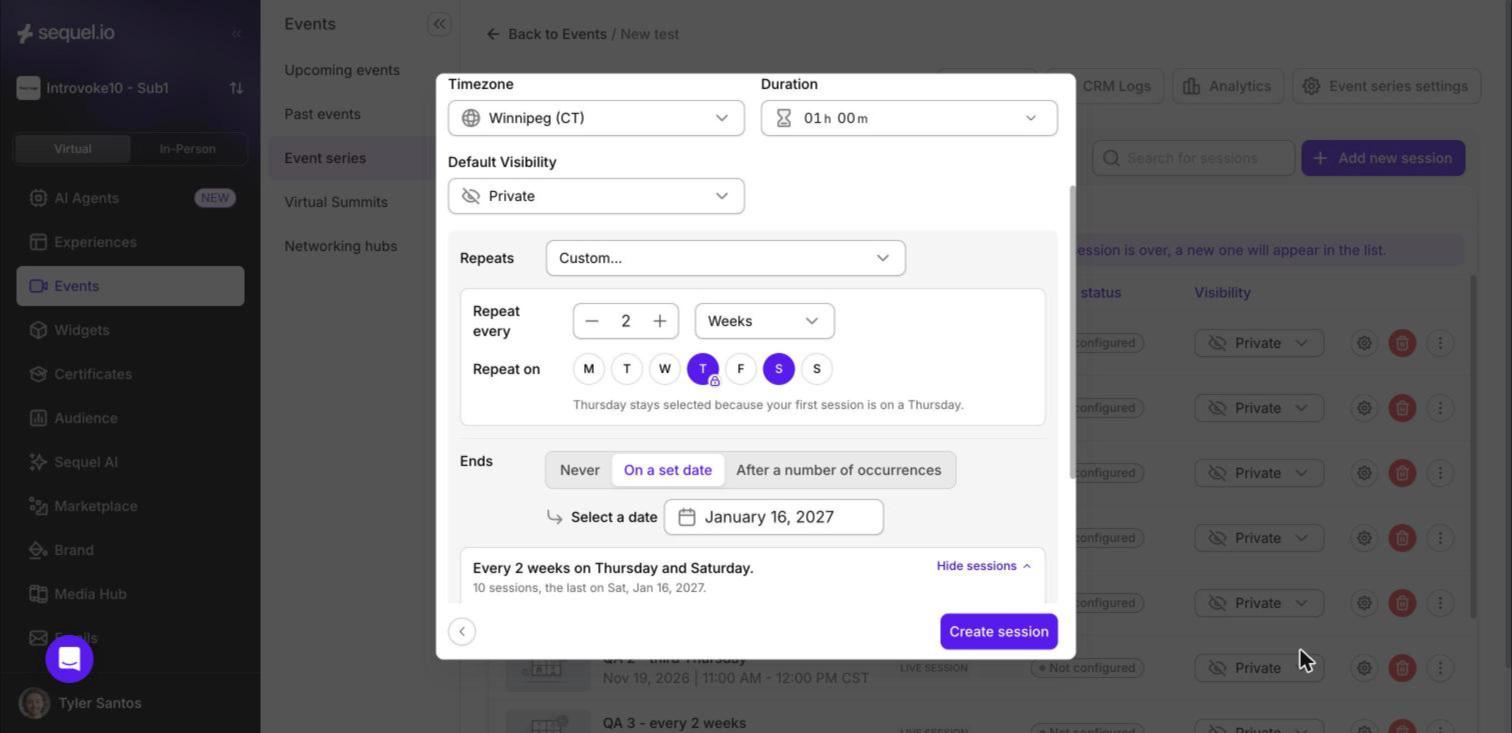
If the end date is the same day as the first session, the dialog warns you that only one session will be created. An end date before the first session isn't allowed.
After you create the sessions
New sessions appear on the Future sessions tab with their dates and times.
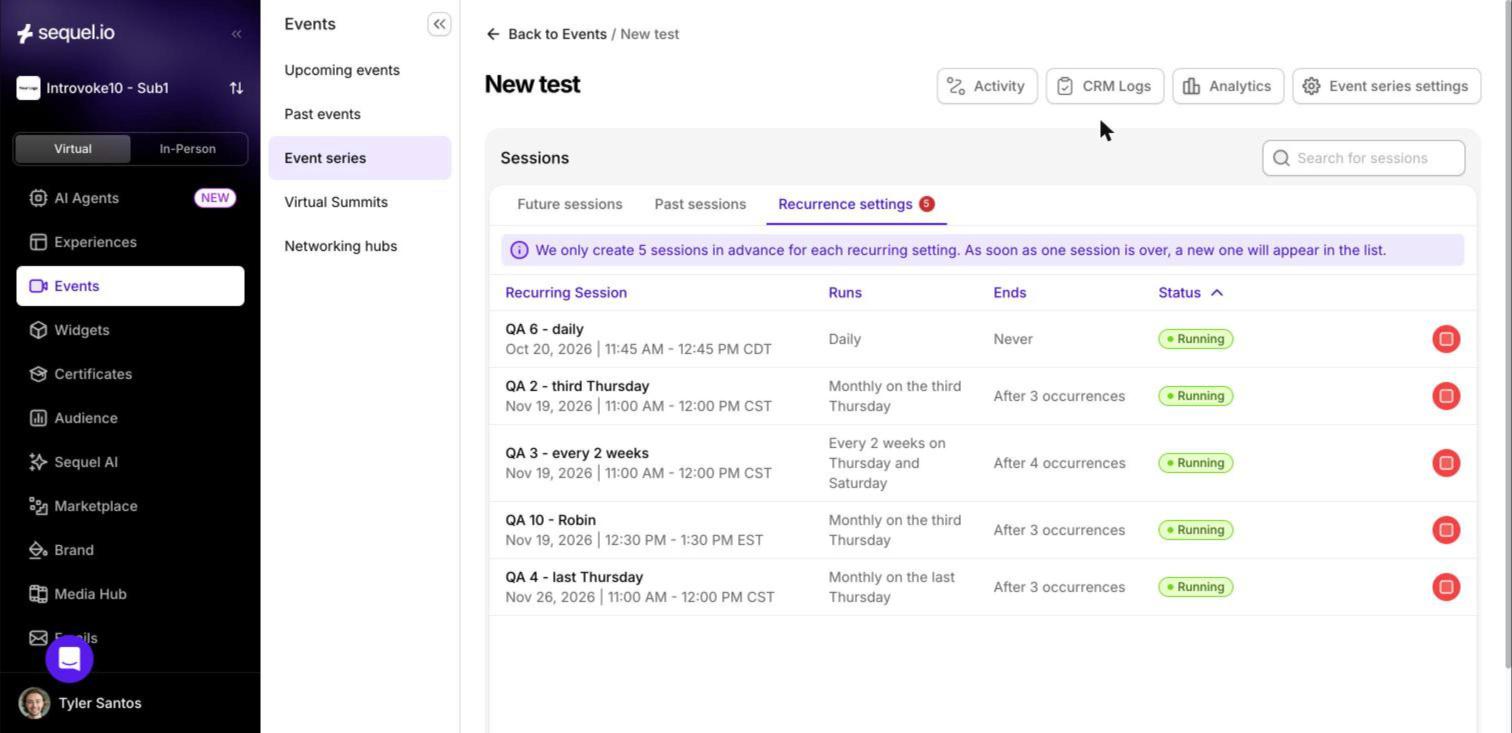
The Recurrence settings tab lists each schedule with its rule (Runs), when it ends (Ends) and its Status (Running or Cancelled). The series Activity log also records each new schedule and the sessions it creates.
Editing a single session is safe. If you move one session to a different date, new sessions still follow the original schedule. They're calculated from the first session, not from the one you changed.
Stop a schedule
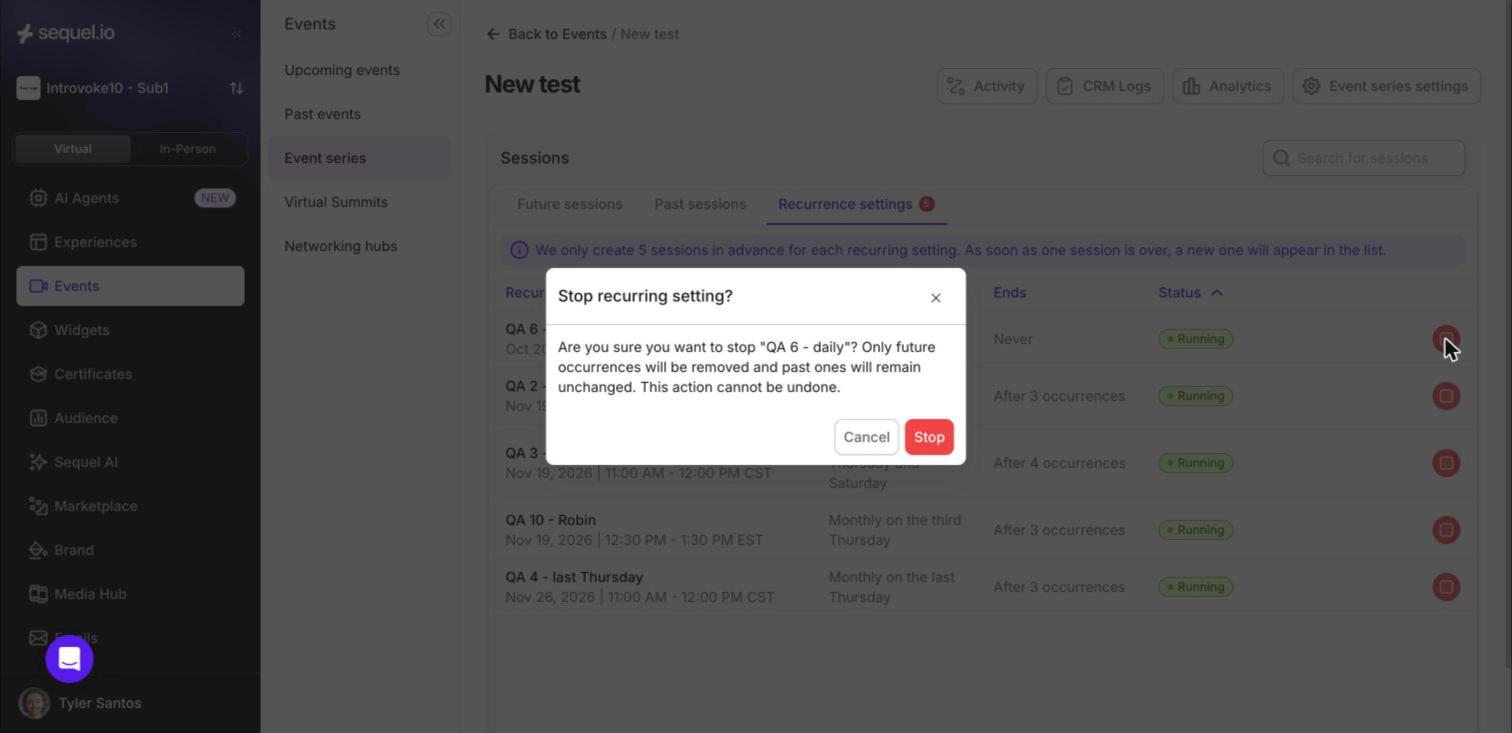
On the Recurrence settings tab, click the stop button on the schedule's row, then click Stop to confirm. The schedule changes to Cancelled and no new sessions are added. Future sessions from that schedule are removed, and past sessions stay as they are. This can't be undone.
Use Sequel AI instead
You can also ask Sequel AI to create recurring sessions. Open AI Agents and describe what you want, for example: "Add 3 sessions called Product Demo to my series on the third Thursday of every month at 12:30 PM New York time, starting November 19." It may ask a follow-up question, such as session length or visibility. It then shows an action card, and nothing is created until you click Approve & create. If your start date doesn't match the rule, Sequel AI points it out and asks which you meant.
Good to know
Holidays aren't skipped. "Every weekday" includes public holidays. Delete or edit any session that falls on one.
A session name is required.
Older schedules aren't affected. Recurring settings created before this update keep their original wording and dates.
Standalone recurring events are separate. This article covers sessions inside an event series. The older standalone flow (New Event → Recurring event (Legacy)) works as before. For setting up a series itself, see Event Series Setup.
FAQ
Why can't I deselect a weekday? The locked weekday is the day of your first session. To use a different day, change the start date.
Why don't I see a "fifth Thursday" option? Not every month has a fifth Thursday, so Sequel offers "last Thursday" instead.
Why are only 5 sessions listed when my schedule never ends? Sequel keeps 5 upcoming sessions at a time and adds new ones automatically as the series runs.
I moved one session. Will the schedule drift? No. New sessions are always calculated from the first session's date.