How to Integrate with Conversion.ai
Last updated: November 11, 2026
Overview
The Sequel integration links each Conversion webinar to one Sequel event and keeps registrations, join links and attendance in sync both ways. Sequel hosts the live and on-demand session; Conversion runs the campaign around it: invites, workflows, follow-ups and Salesforce sync.
Once connected, the integration:
Pulls the event's title, date, time, timezone and host from Sequel, and keeps them current.
Registers people on Sequel when they become Registered in Conversion, and stores each person's personal join link.
Brings in sign-ups made on Sequel's own registration page, in real time.
Marks every registrant Attended, Attended On-Demand or No Show after the event ends, with their watch time.
Connect Sequel to Conversion
A Conversion workspace admin connects Sequel once per workspace, using API credentials from the Sequel company.
You'll need: your Sequel Client ID, Client secret and Company ID.
In Conversion, go to Settings > Integrations and find Sequel under Webinars.
Click Connect.
Enter the Client ID, Client secret and Company ID, then save.
Conversion checks the credentials with Sequel before saving them. If they're valid, the Sequel card shows a green Connected badge with the client ID.
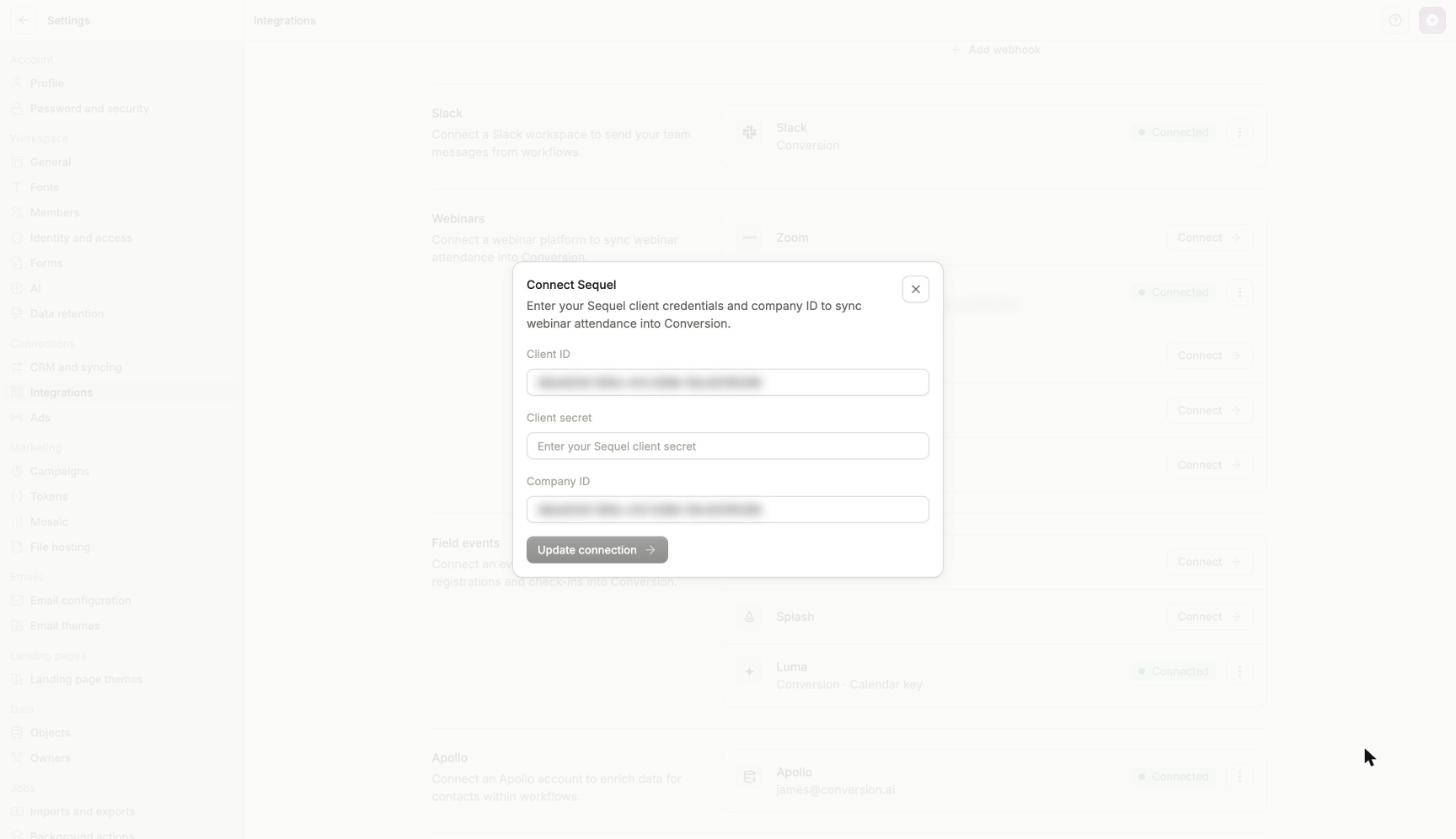
Enter the three Sequel credentials in the Connect Sequel dialog.
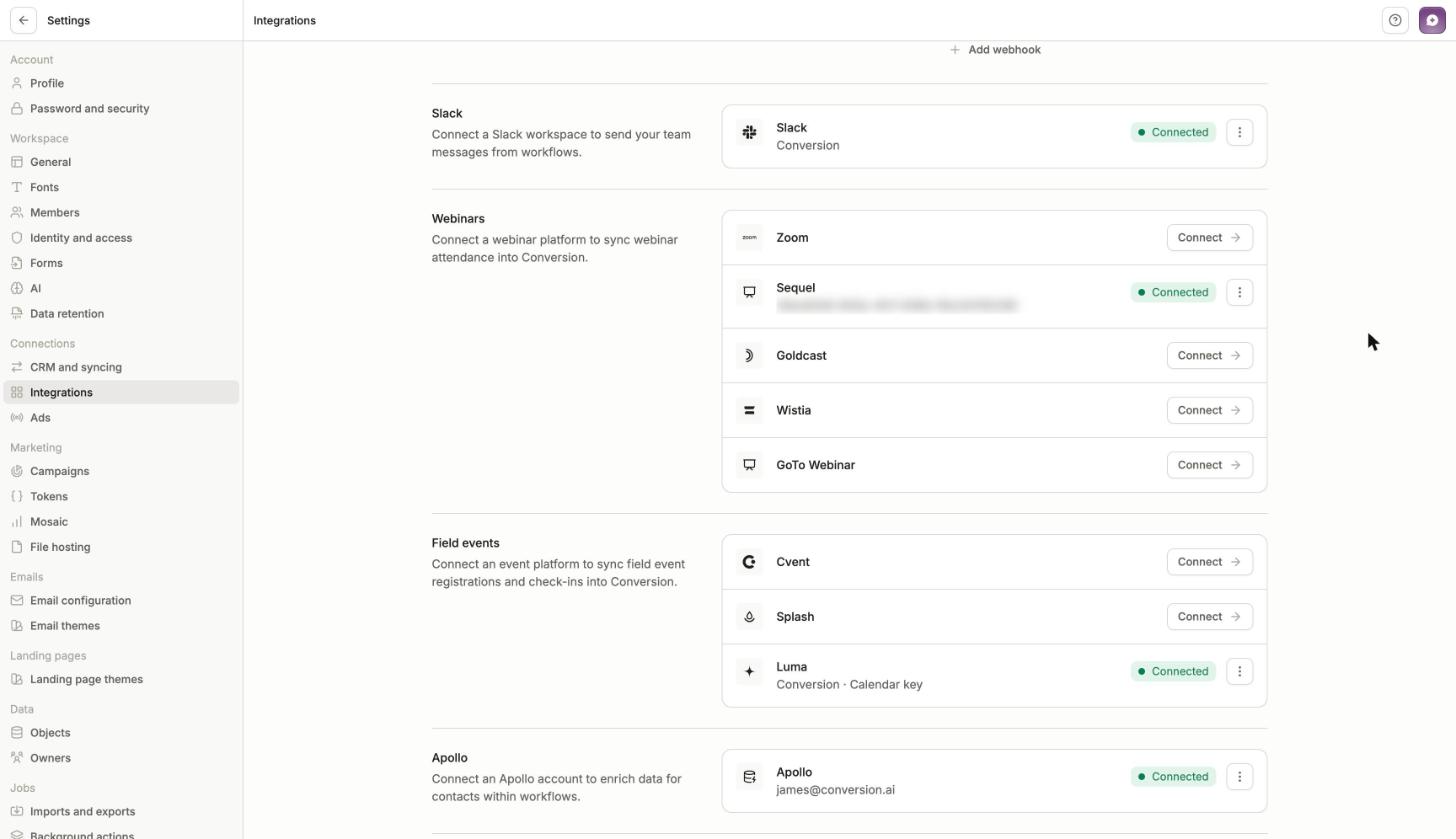
Once connected, the Sequel card shows a green Connected badge.
On connect, Conversion subscribes to three Sequel webhooks for the company and renews them automatically. No setup is needed on the Sequel side.
Sequel webhook | What Conversion does with it |
|---|---|
new-attendee-pre-registration | Captures registrations made on Sequel in real time |
virtual-stage-updated | Re-fetches the linked webinar's details |
virtual-stage-event-ended | Pulls attendance and watch time |
Managing the connection: from the menu on the Sequel card, choose Update connection to rotate credentials, or Disconnect to remove the integration.
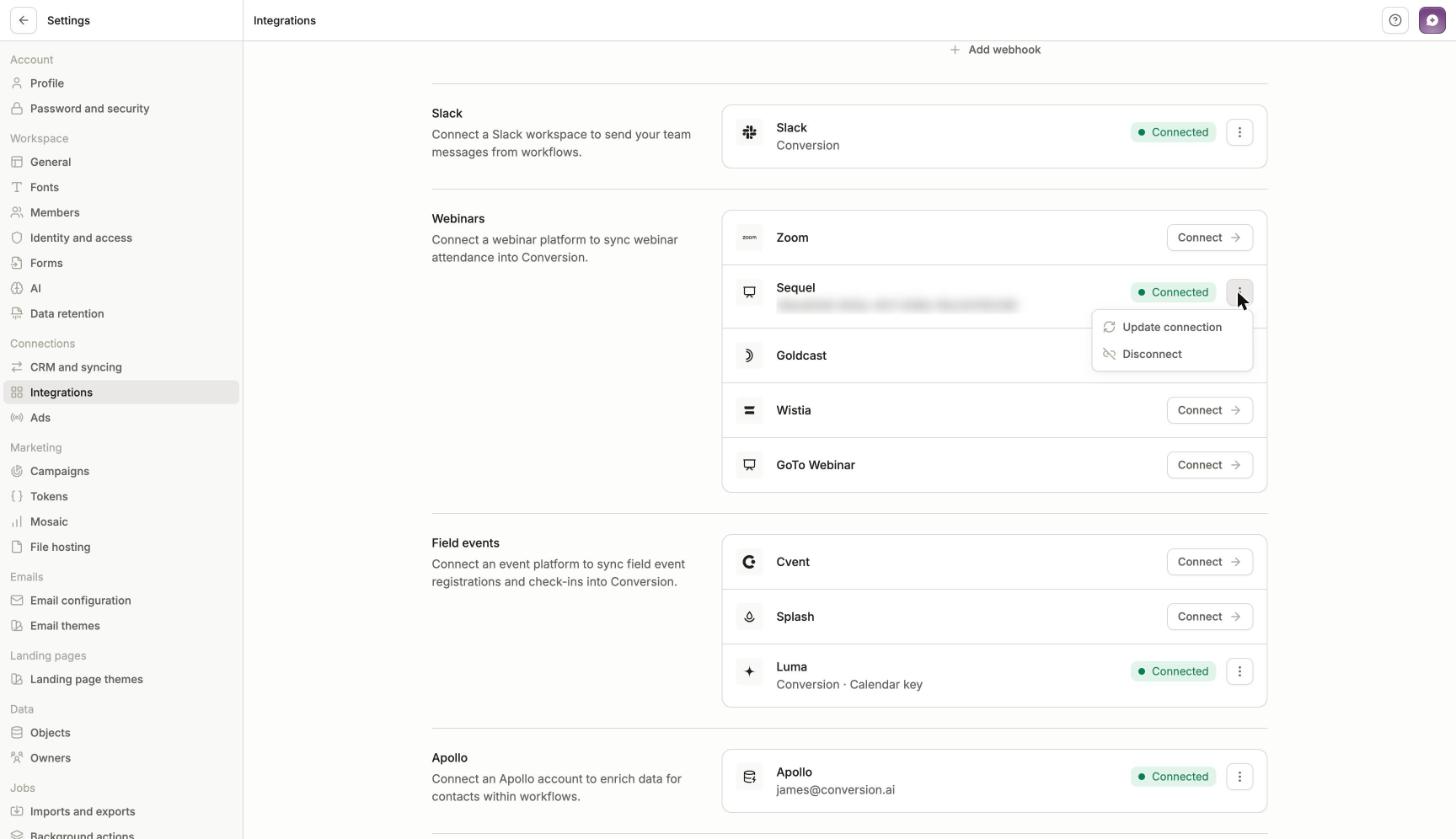
Update connection rotates credentials; Disconnect removes the integration.
What syncs and when
Event details flow from Sequel to Conversion; registrations flow both ways; attendance flows from Sequel to Conversion after the event ends.
Data | Direction | Trigger | Result in Conversion |
|---|---|---|---|
Event details (title, date, start/end time, timezone, host) | Sequel → Conversion | Linking the event; event-updated webhook; Re-sync button | Webinar marked "Details are managed by Sequel" |
Registration made in Conversion | Conversion → Sequel | Member moved to Registered, by hand or from a workflow | Person registered on Sequel via its API; join link stored |
Registration made on Sequel's page | Sequel → Conversion | Registration webhook, real time | Matched to a contact by email (created if new), added as Registered, join link stored |
Attendance and watch time | Sequel → Conversion | Event-ended webhook pulls Sequel's attendee activity report | Status set to Attended, Attended On-Demand or No Show; watch time saved |
Fields stored on each webinar member
Field | What it holds |
|---|---|
Webinar URL | Personal Sequel join link with a unique join code. Use it in emails as |
Webinar Registered At | When the person registered |
Webinar Registrant ID | Their identifier on Sequel (their email address) |
Webinar Join Duration | Seconds watched, live or on demand |
Link a webinar to a Sequel event
Each Conversion webinar links to exactly one Sequel event. Webinars are campaigns under Campaigns > Webinars; the Connections column shows which are linked to Sequel and mirrored to a Salesforce campaign.
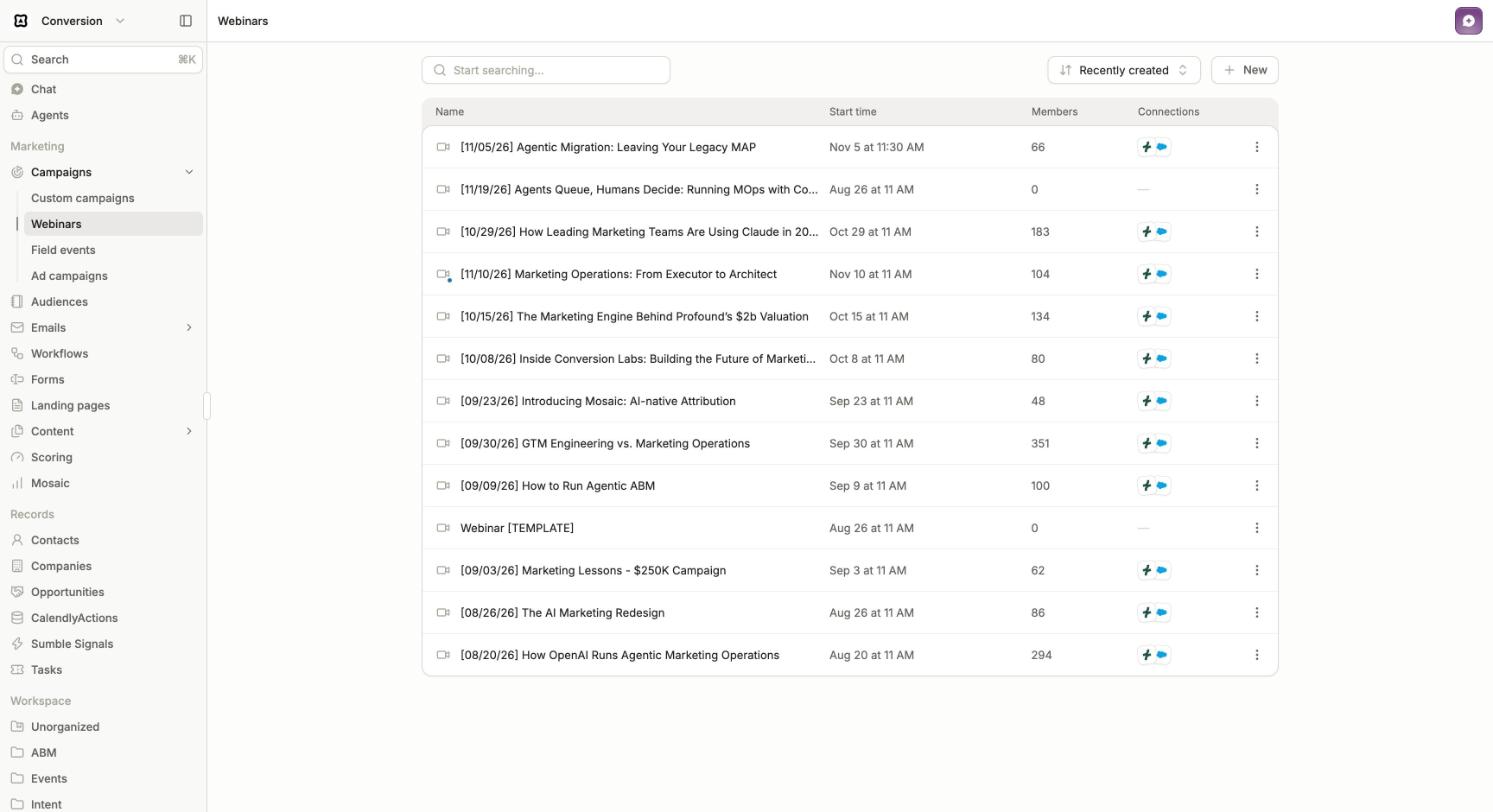
The Connections column shows which webinars are linked to Sequel and Salesforce.
Open the webinar. A new webinar shows a Webinar platform card with a Connect button.
Click Connect to open Sync an external webinar.
Pick the event. Conversion lists the company's Sequel events live from Sequel, grouped into upcoming and past.
Click Confirm and sync.
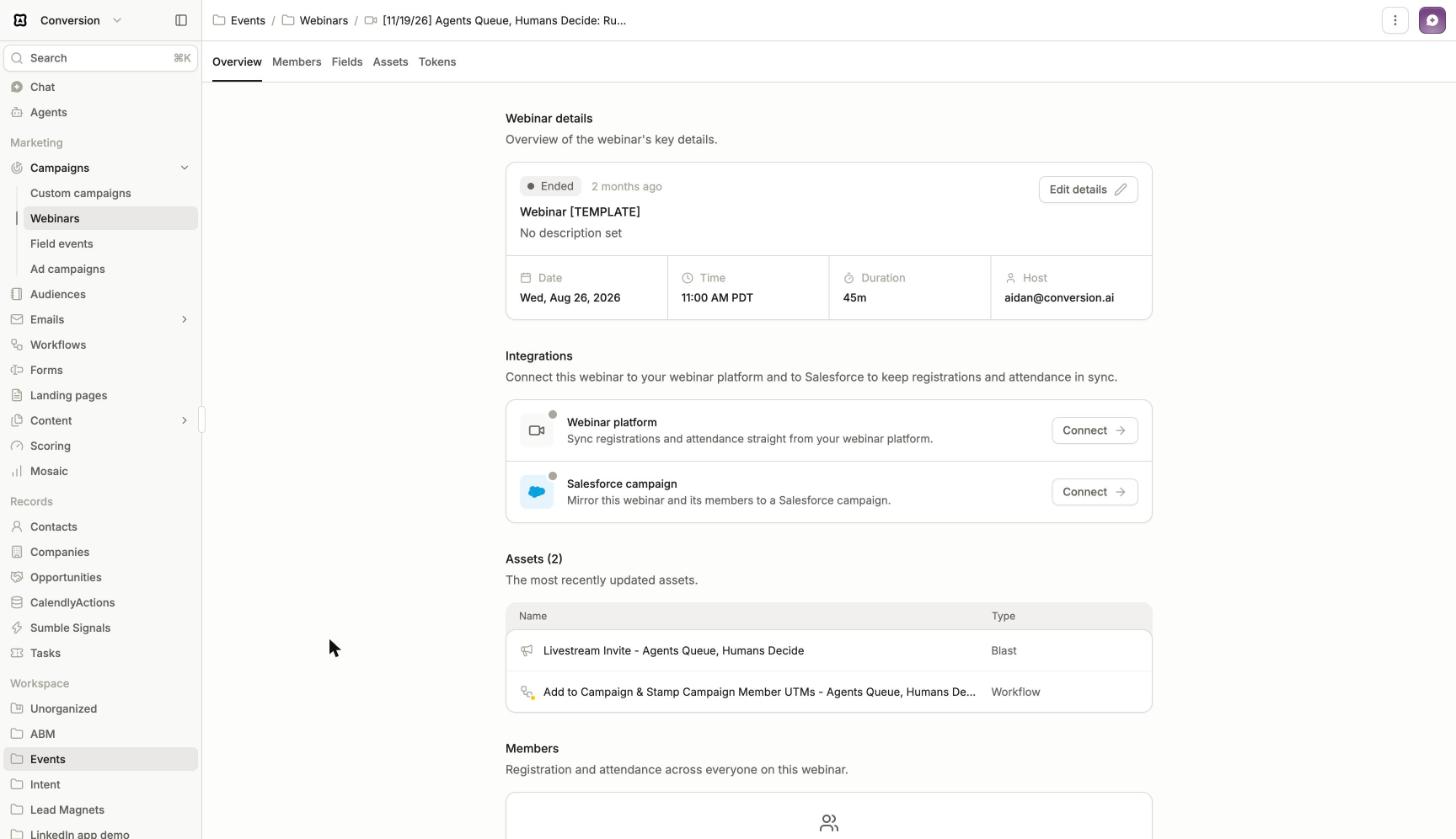
Step 1: a new webinar shows the Webinar platform card.
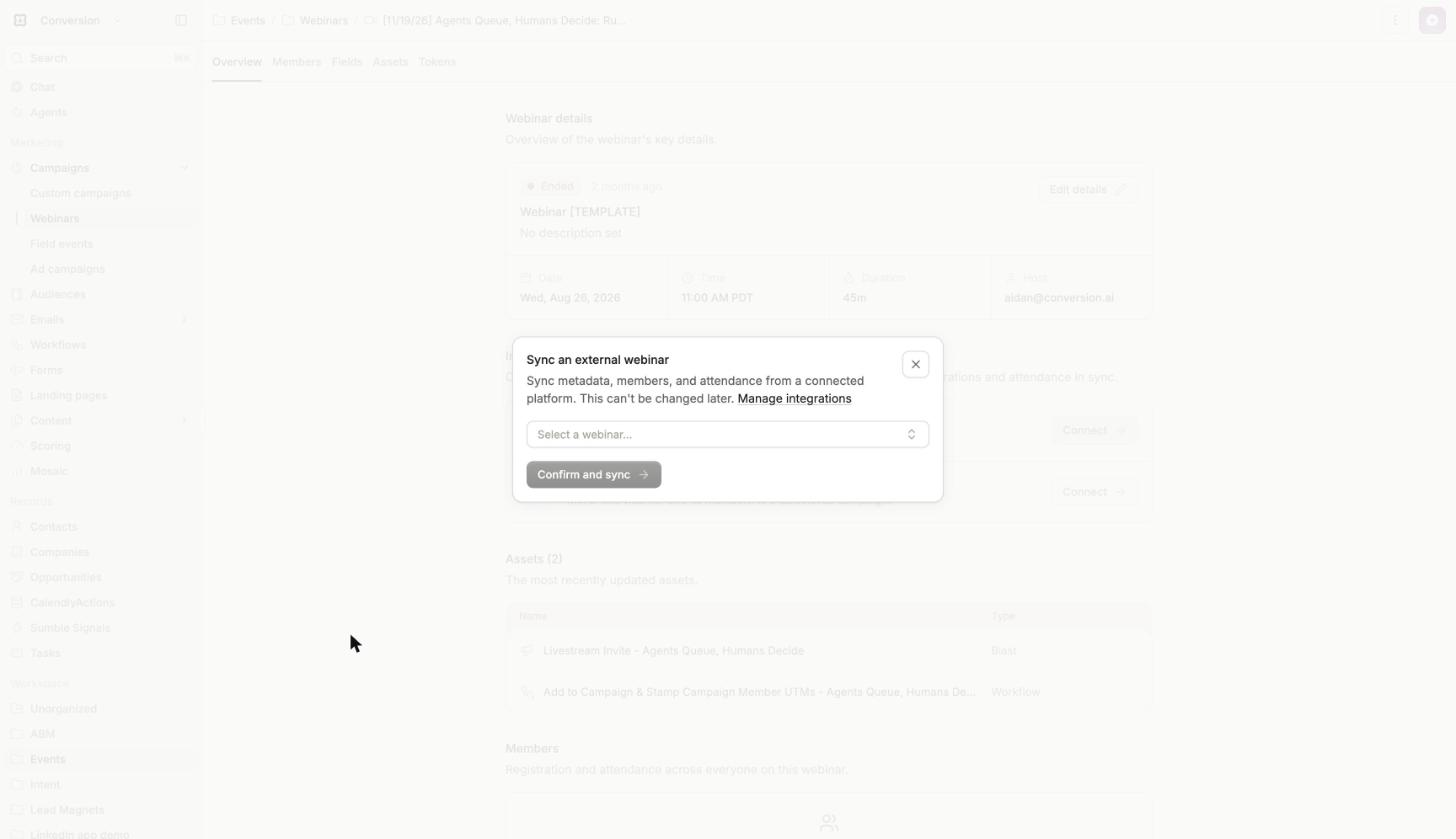
Step 2: Connect opens Sync an external webinar.
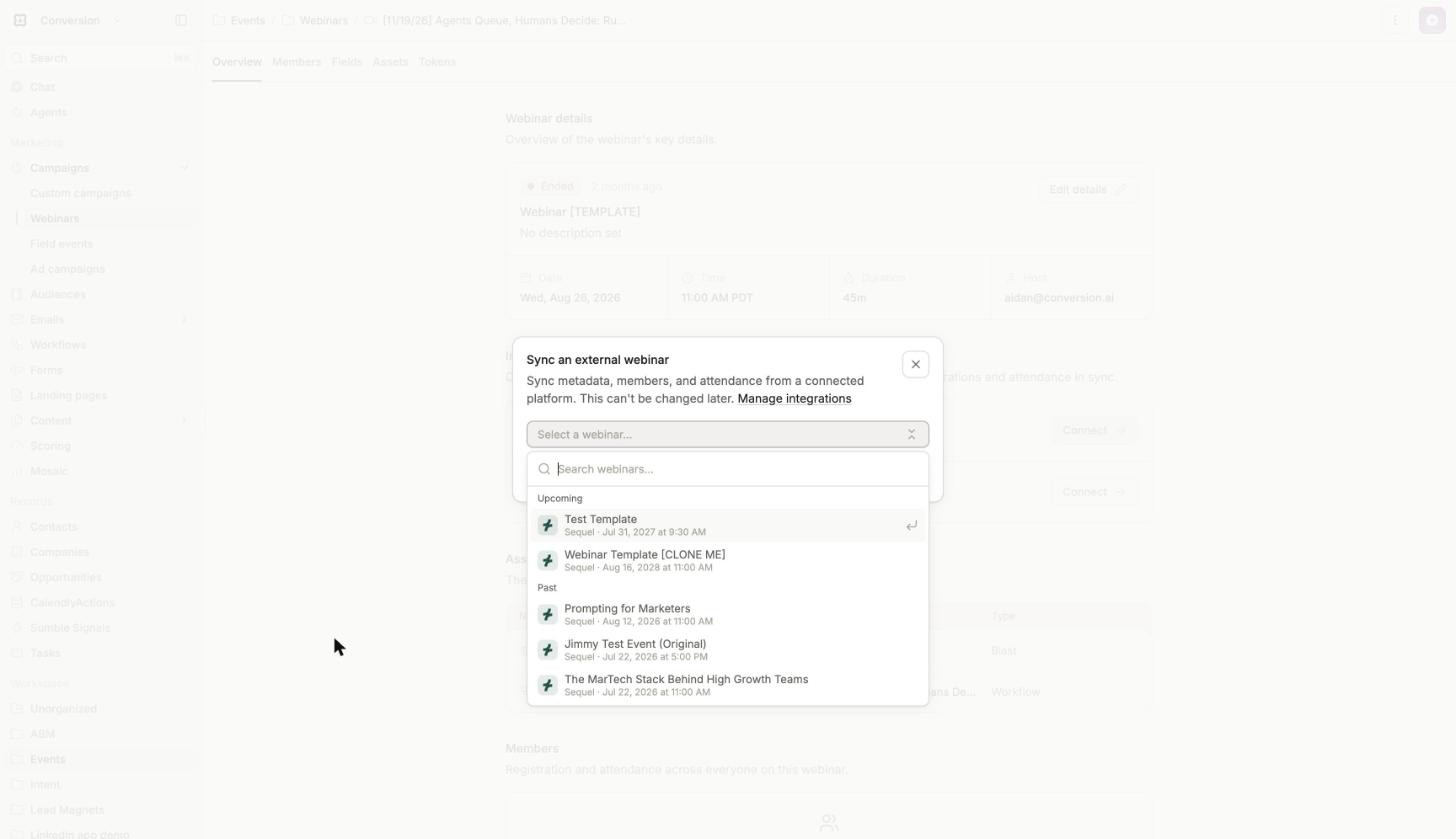
Step 3: choose the Sequel event, then Confirm and sync.
Conversion then pulls the event's details and marks the webinar "Details are managed by Sequel". Edit the event in Sequel, not Conversion: changes come over automatically, or click Re-sync to refresh on demand.
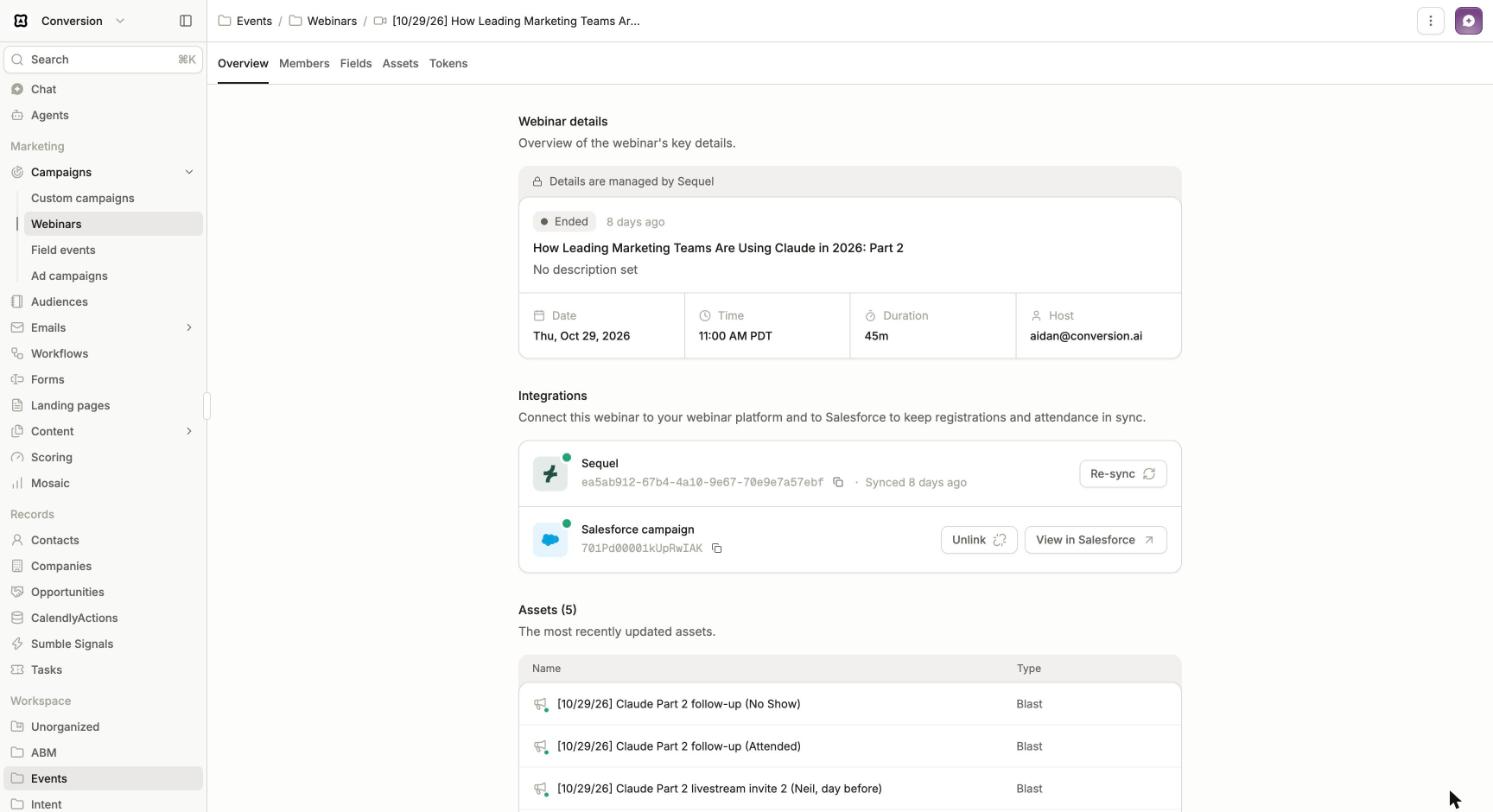
A linked webinar's details are managed by Sequel; Re-sync refreshes them.
Running the campaign
Registration: move members to Registered by hand or with a workflow. Each is registered on Sequel and gets a personal join link.
Emails: put
{{ campaign_member.webinar_url }}in confirmation and reminder emails so each person gets their own join link.Results: the webinar's Members panel shows members, registrations, attendees, attendance rate and a count per status. Statuses are Invited, Registered, Attended, Attended On-Demand, No Show and Registration Error.
Follow-ups: after the event ends, statuses update from Sequel's attendance report, so Attended and No Show follow-up blasts can target the right people.
Contact timeline: each contact's timeline shows the journey: form fill, registration on Sequel, join link saved, then attendance.
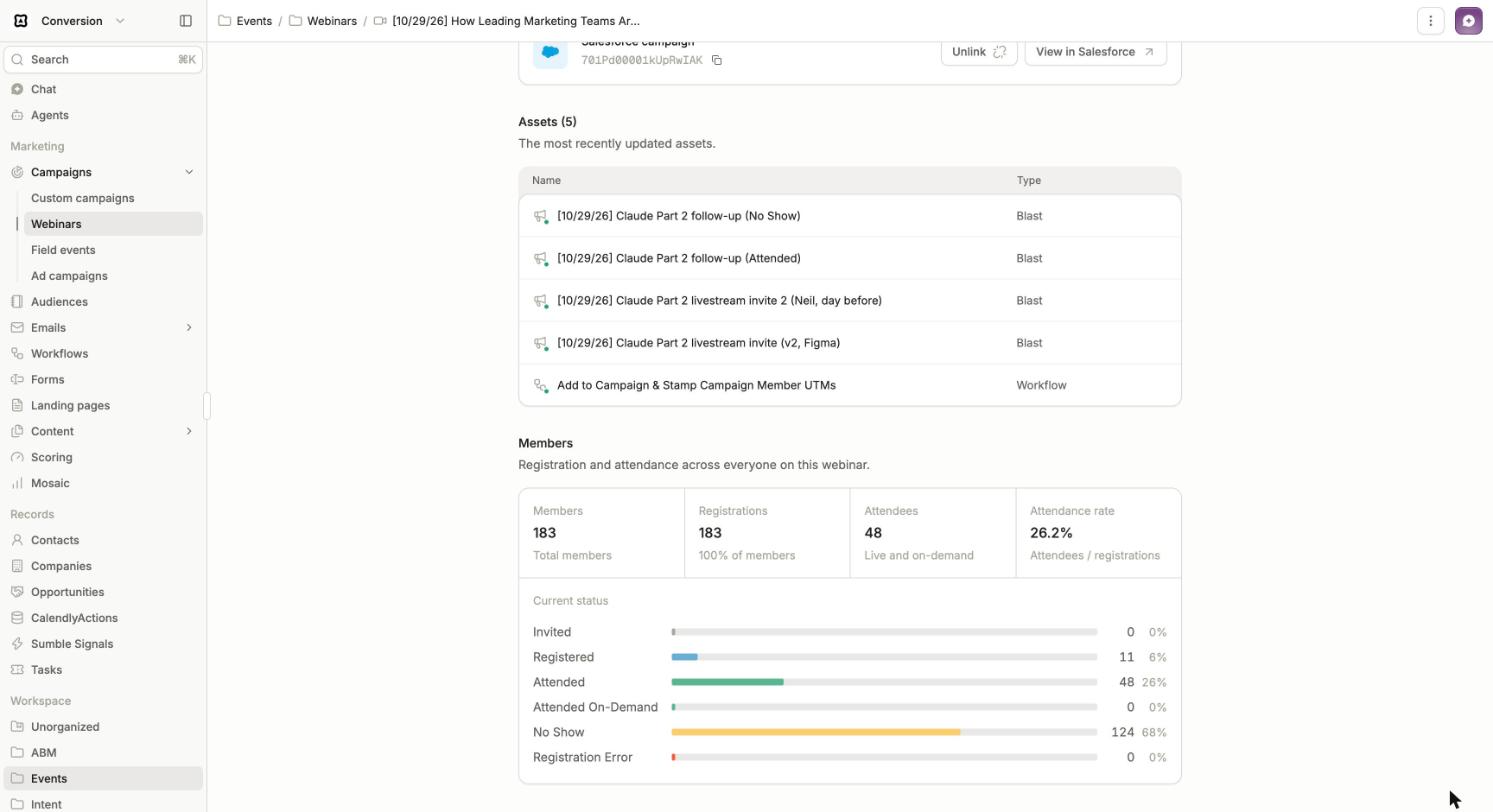
The Members panel summarizes registration and attendance by status.
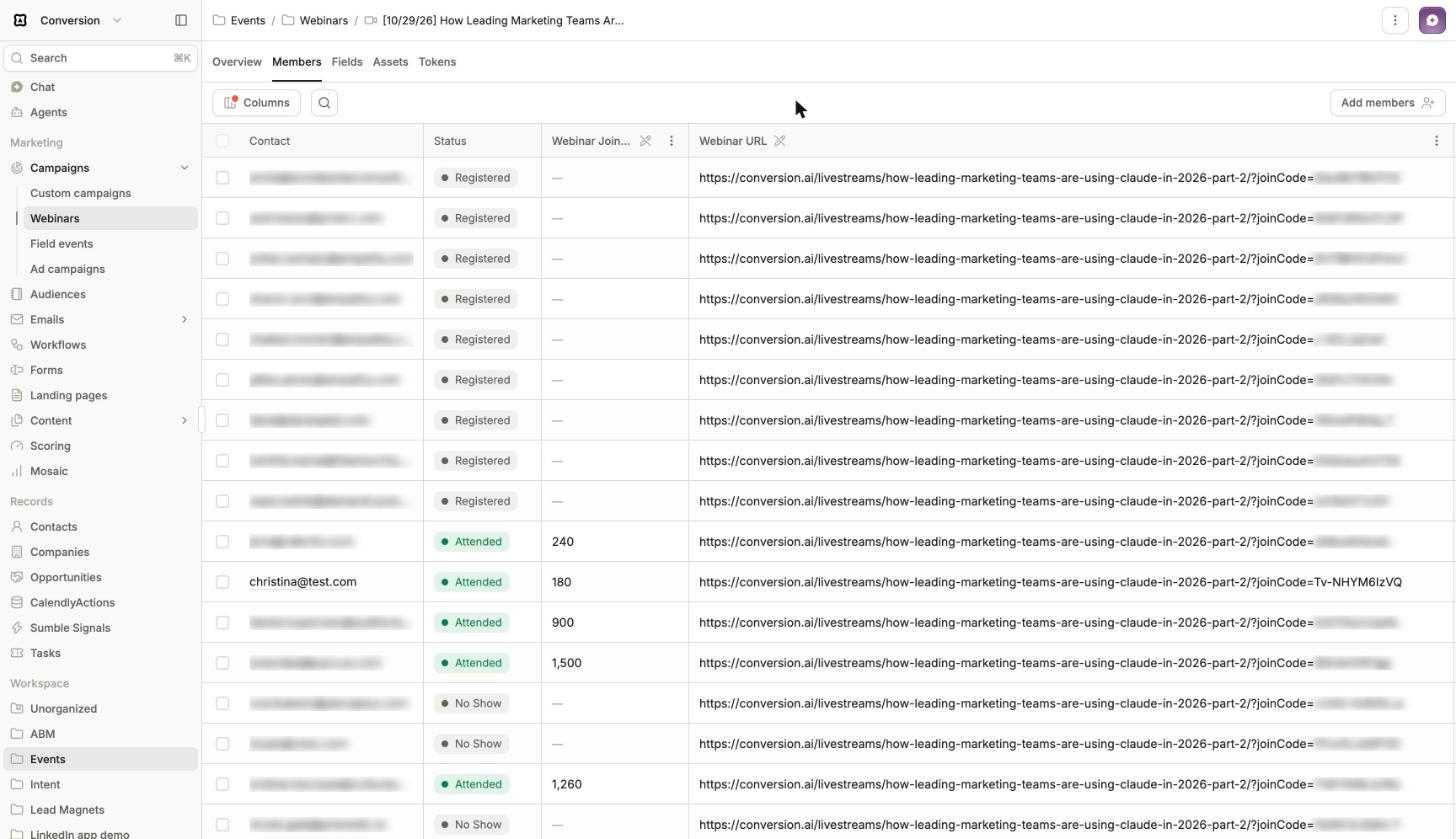
Each member's personal join link and seconds watched.
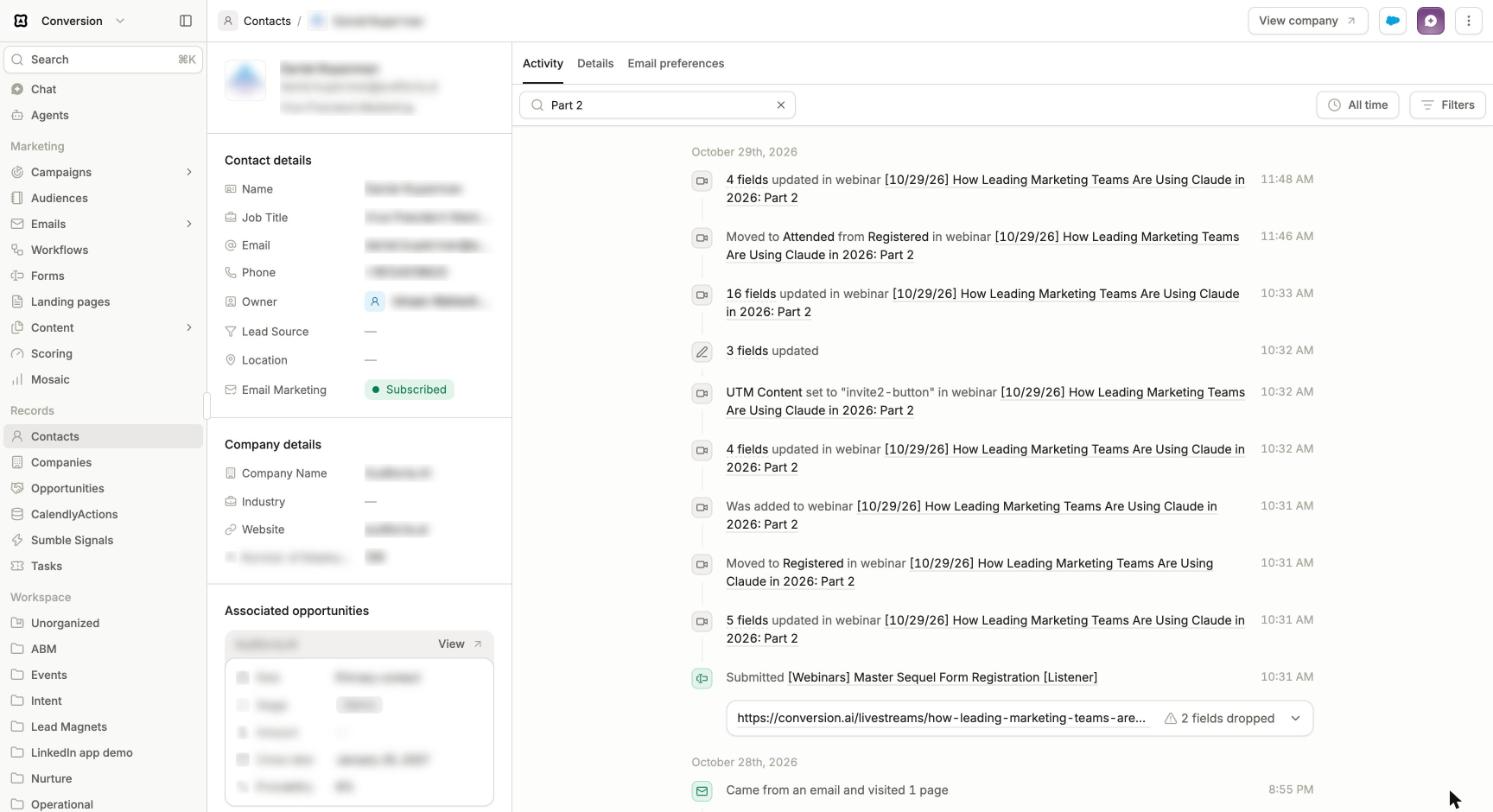
A contact's timeline, read bottom up: form fill, registered on Sequel, join link saved, Attended.
Troubleshooting and FAQ
The connection won't save. Conversion validates credentials with Sequel before saving. Check that the Client ID, Client secret and Company ID all come from the same Sequel company.
I need to change credentials. Use Update connection on the Sequel card. Use Disconnect only to remove the integration entirely.
Webinar details look out of date. Details update automatically when the event changes in Sequel. Click Re-sync on the webinar to refresh right away.
Can I edit the title or time in Conversion? No. Linked webinars are managed by Sequel; make the change in Sequel and it syncs over.
Someone registered on Sequel's page. Will they show up? Yes, in real time. Conversion matches them to a contact by email, creating one if needed, and adds them as Registered.
A member shows Registration Error. Registering them on Sequel failed. Open the contact's timeline for details, then move them back to Registered to retry.
Attendance hasn't updated. Statuses and watch time come in after Sequel sends its event-ended webhook. Until then, registrants stay Registered.
Can one webinar link to several Sequel events? No. Each Conversion webinar links to exactly one Sequel event.
What counts as Attended On-Demand? Someone who watched the replay rather than the live session. Their seconds watched are in Webinar Join Duration.